Photos
AppPlatform supports uploading files, taking photos, and recognizing barcodes directly from a scan view.
Enabling Photo Upload
On a scan view, add a new line and choose one of the following CSS attributes:
| CSS Attribute | Description |
|---|---|
UPLOAD |
Allows files to be uploaded. |
PHOTO or PHOTOLINE |
Allows photos to be taken and/or uploaded. |
For both attributes, use Data type Session variable, with input enabled, bound to key code 134 (F23). Processing is handled by codeunit 11155091, function 100.
If a description is entered, it is shown as the label on the upload button. If left empty, a default upload icon is shown instead.
Upload Button vs. Photo Button
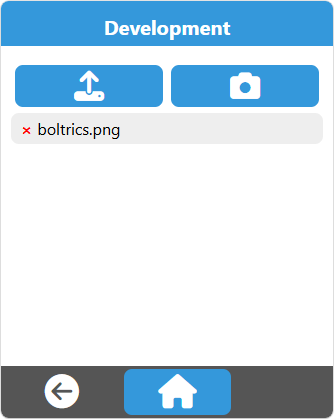
Choosing the PHOTO CSS attribute adds a second button with a photo icon. The two buttons behave differently, which is useful to know:
- Upload button (left): Triggers the device's native camera app, temporarily leaving AppPlatform. This gives access to advanced camera features such as zoom and flash. Only one photo can be taken at a time, after which the user confirms and is returned to AppPlatform. Optionally, this button can be configured to open a file picker instead of the camera directly, from which the device's gallery or other file-managing apps can usually be reached — see Opening the Gallery below.
- Photo button (right): Keeps the user within AppPlatform, linking the camera input directly to the app. This makes it easy to take several photos in a row, though advanced camera features such as zoom are not available.
Opening the Gallery
To open the device's gallery instead of the camera app directly, add an extra line with CSS attribute FILEAREAPHOTO and CSS class OPENGALLERY.
Resizing Photos
If needed, captured or uploaded photos can be resized. To do this, add a CSS class in the format MAX_<integer> to the PHOTO or PHOTOLINE line. AppPlatform will then try to compress the photos to that maximum size, in kilobytes.
For example, to compress photos to a maximum of 1 MB, use the CSS class MAX_1024. Any integer value is supported.
Note
If a photo contains too much detail to compress effectively, the resulting file may still end up larger than the specified value. No runtime error is raised in this case, and it should remain a rare exception.
Scan Barcodes with Your Mobile Phone
The CSS attribute BARCODE enables barcode scanning directly through a mobile device. When applied, the phone's camera is repurposed from taking photos to actively scanning barcodes, allowing barcode data to be entered seamlessly into the application.
This streamlines workflows such as scanning delivery stops from a loading list, without the need for specialized hardware. It is optimized for scanning individual barcodes; for scenarios involving many densely packed barcodes, a traditional laser scanner may still be preferred.
Supported barcodes: qr_code, ean_13, code_128.