Translations
General
In 3PL translations are being managed in MGT. The English and Dutch translations are being managed by Boltrics. Other languages are managed by the partners of Boltrics. On this page you will find an instruction on how to add or modify translations.
Warning
Disclaimer: This instruction applies only to consultants and partners.
Functionality
Instruction for Adjusting Translations in MGT
- Open Translation Management: In the top toolbar of MGT (the ribbon), you will find the "Translation Management" option.
- Select the Correct Option: Under "Translation Mgt," you will see four options:
- App Translations
- Translations
- Translation Rules
- Languages Select "App Translations."
Filter by App Number: In the "App Translations" screen, you can filter by "AppNo." Enter the following filter criteria: <>3pl-cus-* & <>3pl-loc-* This will give you an overview of all relevant apps.
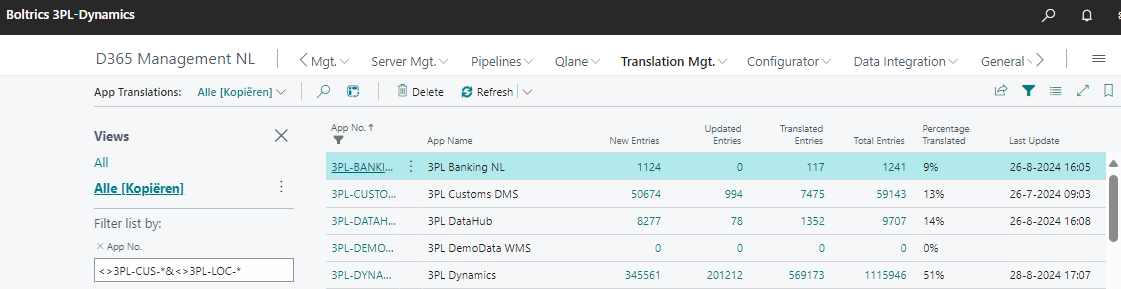
Open the Relevant App: Find the correct app number (in this case, 3PL Dynamics) and click on it to open.
Display All Entries: In the next screen, click on "Total Entries" to get a complete overview of all translations within this app.
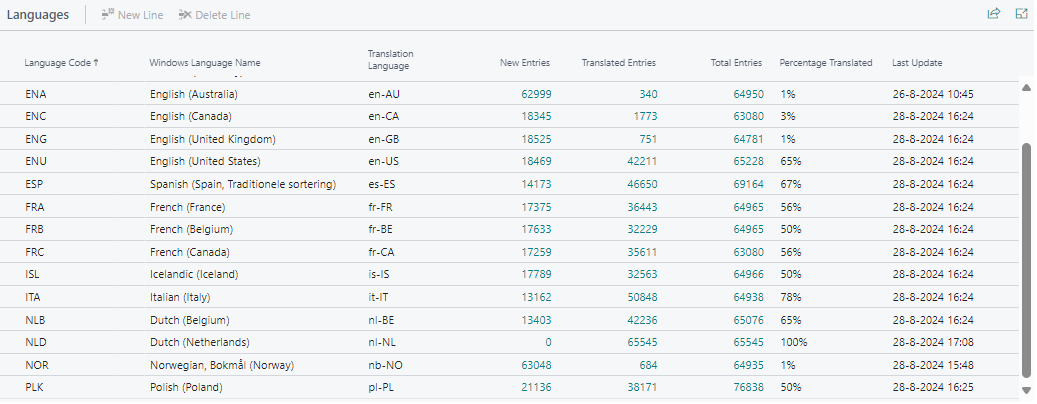
Search for the Translation: In the displayed list, you can search by source value (the original text) or target value (the translated text). Use this search function to find the translation you want to adjust.
Translation Uniqueness: For each translation, you will see a field labeled "Uniqueness." This field indicates whether the translation is the same across the entire application or if it varies by module.
- If the translation is unique to the entire application (within the target language), set the "Uniqueness" field to "Unique Translation."
- If the translation can differ by module/context, choose "Multiple Translations."

Warning
If you change a value with Uniqueness=Unique it will change all the Target Values (within the same Target Language and Source Values). It is not possible to Undo this transaction.
Instruction for creating Translation Rules
Under the "Translation Mgt." section, you will find the Translation Rules. If, for example, the term "call stack" needs to be translated, you may not want to use the literal translation.
In the translation rules, you can add a custom rule. Please note: it is important to place the language code at the beginning of each rule. See the image below.
