Introduction
The DMS module helps you prepare, validate, and process customs declarations in a structured way across inbound and outbound logistics flows. It supports document creation from operational records (for example receipts, shipments, forwarding, and transport documents), plus declaration message generation and follow-up processing.
This page describes the use of DMS 4.0 for customs import and export processes. It provides functional guidance for the most relevant setup and declaration scenarios.
Basic setup
To minimize setup effort, standard functions are available to create a basic DMS setup from the DMS Setup page. These functions can be used to create a basic structure for DMS processing, such as status templates, process steps, numbering, and data integration messages. In addition, customs code tables can be imported to support the required declaration values.
Message Status Setup
Use Message Status Setup from DMS Setup to define how an incoming DMS message status updates the document status in Business Central.
In this setup, you map:
- the DMS Status Code;
- the Document Type;
- the Next Status in Business Central.
When the DMS status on the document changes, the system checks this setup automatically.
If a next status has been defined and it differs from the current document status, the document status is updated automatically.
Effect: When DMS status on document changes, system looks up this mapping If a Next Status exists and differs from current status, it executes status change automatically
Authorisations
DMS supports authorisations at both header level and line level.
Reusable permits can be registered in DMS Setup -> Authorisation Permits.
Typical fields include:
- Type
- Reference No.
- Type Description
Authorisations can be registered on declarations in the following places:
- Header level: DMS Import / DMS Export -> Related -> Authorisations
- Line level: document lines -> Related -> Authorisations
If Available Permit is selected, the related values can be filled automatically from the permit register.
Previous/Supporting Document
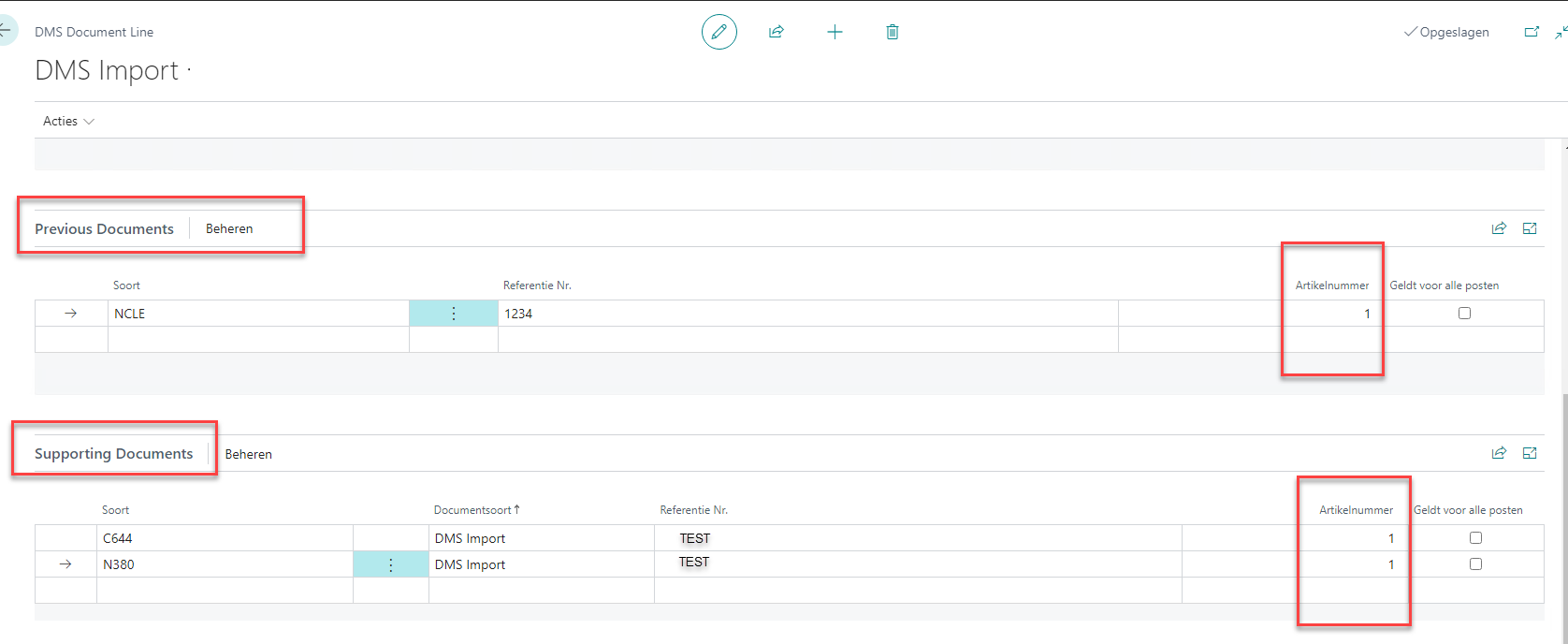
If the declaration refers to a Previous Document and/or Supporting Document, the Article Number field is mandatory. Enter the article number exactly as stated in the previous document.
Overpack with different HS codes
When one physical overpack contains goods with different HS codes, create a separate DMS document line for each HS code.
For each line, maintain the correct Commodity Classification. In Packaging, enter the actual package details, such as marks, package type, and quantity, on one line only.
For the other lines that belong to the same physical overpack, set Including Content to true.
When Including Content is selected, DMS:
- copies the shipping marks and package type from a previous line;
- sets the number of packages to 0;
- sets the gross weight on that line to 0;
- prevents the same physical package from being counted twice.
Important: Including Content cannot be used on the first document line.
DMS Steps
DMS uses the Step framework to automate processing.
DMS documents can be created from different operational documents, depending on the logistics flow. The exact process depends on the document type and your configured workflow, but the purpose is the same: to create the appropriate DMS declaration document from the operational process.
You typically work with two categories:
Document creation steps Create DMS Import/Export documents from source records (receipt, shipment, import/export air/ocean, transport, trip, customer transfer, etc.).
Generic processing steps Additional automation and checks (for example linking documents, setting defaults, validating values, creating related documents/messages etc).
Create Declaration Message
Use the Create Declaration Message step to send a declaration message from the DMS document.
Create DMS Invalidation declaration
Use Invalidation to create an invalidation message for an existing declaration.
For import documents, this creates IE414.
For export documents, this creates IE514.
To create this message, the following information is required:
- Movement Registration No.
- Local Reference No.
- a valid declaration office
- at least one line in Related -> Invalidation Information, including:
- Type Code
- Description
Create DMS Control Result declaration
Use Control Resolution to create a control resolution message.
For import documents, this creates CCCRI.
For export documents, this creates CCCRE.
This message is mainly based on the existing data on the DMS document and the applicable validation rules.
Create DMS Alternative declaration
Use Alternative to create an alternative message for export declarations.
This creates IE583.
To create this message, the following information is required:
- Movement Registration No.
- exit-related information, including the relevant exit date and time context
- at least one line in Related -> Alternative Information, including:
- Type Code
- Code
For alternative codes 11, 14, 15, and 17, Additional Doc. Line No. must also be entered.
Simplified/Supplementary declaration
In DMS, an IM-B can also be submitted. After the acceptance has been received and all required information is complete, change the supplementary declaration symbol from B to X. You can then send the message again as a declaration. It will be sent as an IE415 message.
When the IM-B is accepted, a line is automatically created at header level in Previous Documents with type NMRN and the MRN number as reference.
Supplementary declaration
On the document header, use Personalize to make the field Amendment required visible.
If changes are required:
- select Amendment required;
- change the supplementary declaration type to X;
- make the required changes.
Data can only be changed when the document has status 115 and the supplementary declaration symbol is X.
DMS Import/Export integrations with Portbase
Steps are used to send messages to Portbase.
Before the Portbase document is created, a check is performed to verify whether:
- a container number & a booking reference is available;
The booking reference can be entered in DMS via Related -> External Reference, using the type Booking reference. For flows without a container, such as ferry or trailer shipments, this check can be skipped by enabling Skip Container Check in the step.
| Component | Description |
|---|---|
| DMS Import -> Portbase MID | Creates a Portbase MID document from DMS Import (IM4/IAE/PIE). |
| DMS Export -> Portbase MED | Creates a Portbase MED document from DMS Export. |
| Document relation | Creates an automatic link between the DMS document and the Portbase document. |
Create Fiscal Representation lines
Use the Insert Fiscal Lines from DMS step to create fiscal representation lines.
Fiscal lines are created when:
- the Fiscal Reference ID on the import document is the same as the Fiscal Entity in the customs setup;
- the Fiscal Entity No. in the Consignee address is the same as the Fiscal Entity in the customs setup;
- the Fiscal Representation field in the Consignee address is set to Limited Fiscal or General Fiscal.
An additional step function is also available in codeunit 11237246 - 3PL DMS Steps Functions Generic, using ID 20. This function checks the status of the Agent against the authorisations that are registered in the system.
Cost and Revenue creation
Cost and revenue records can be created through a status function Create Cost and Revenue Records on Receipt CCTAX.
The mapping of means codes to services can be maintained via DMS Setup -> Related -> Customs Code Mapping.

Deductions and Create Tax Lines
This section explains how Deductions and Create Tax Lines are used in DMS during customs declaration processing.
| Subject | Description |
|---|---|
| Create Tax Lines | Step function that calculates or rebuilds customs tax lines on DMS documents. |
| Deductions | Charge lines used as valuation deductions in customs calculations and in the XML. |
| Recalculation behavior | Existing calculated tax and deduction lines can be removed and recreated. |
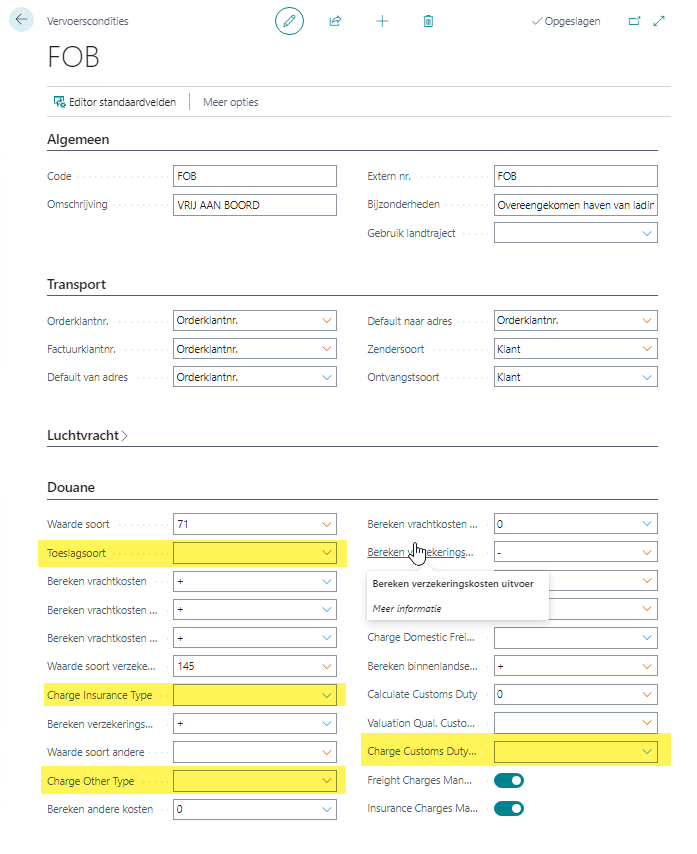
Additional and deduction entries are defined on page Inco Terms. Based on this setup, costs are either added or deducted.
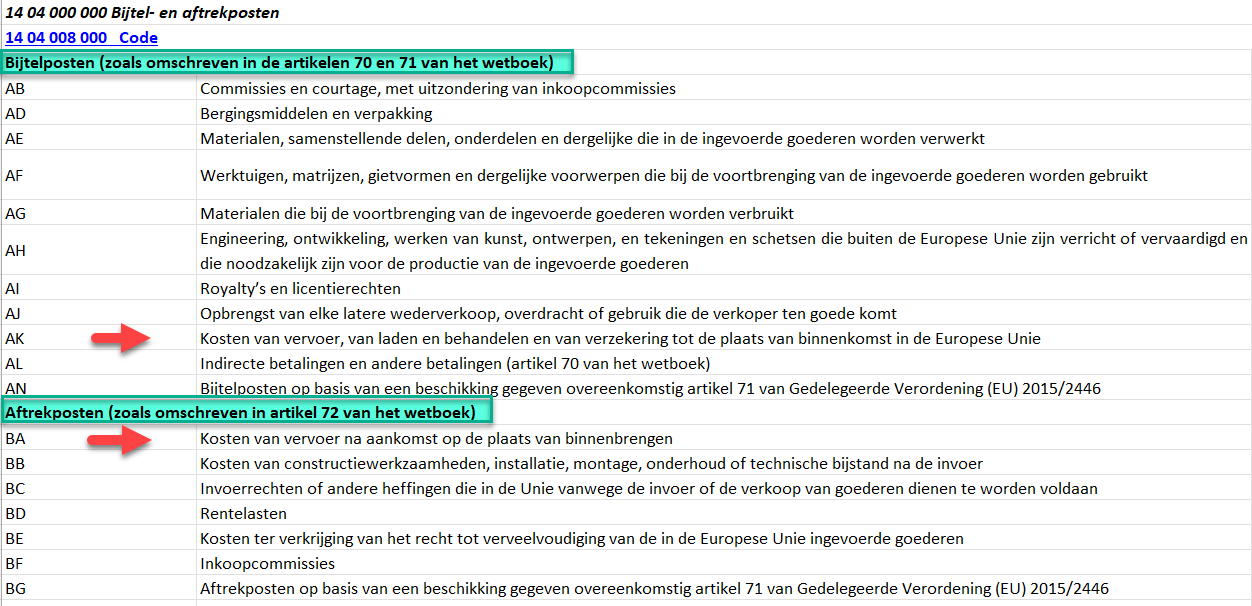
In DMS, use Process -> Create Tax Lines to create the tax lines. This function also fills the Deductions, provided the required codes have been entered in the delivery terms. Using Personalize, the relevant fields can be added to the page. The fields marked in yellow must be filled with values from the related table. Only then will the code be included in the deductions.
For example, in the case of FOB, following applies to freight and insurance costs:
DMS Digital Dossier
Dutch Customs introduces the Digital Dossier (DD) as the mandatory channel for submitting documents with customs declarations from 16 May 2026. From that date, documents can no longer be submitted by email. With the Digital Dossier, all attachments related to a declaration in DMS, such as invoices, packing lists and permits, must be submitted digitally and in a structured way through DMS.
Step 1: Initialize DMS
Go to DMS Setup. In the action bar, click Actions and then select Initialize DMS. This initializes the latest changes and creates the new step Create DMS Requested Document.
Step 2: Check the requested documents
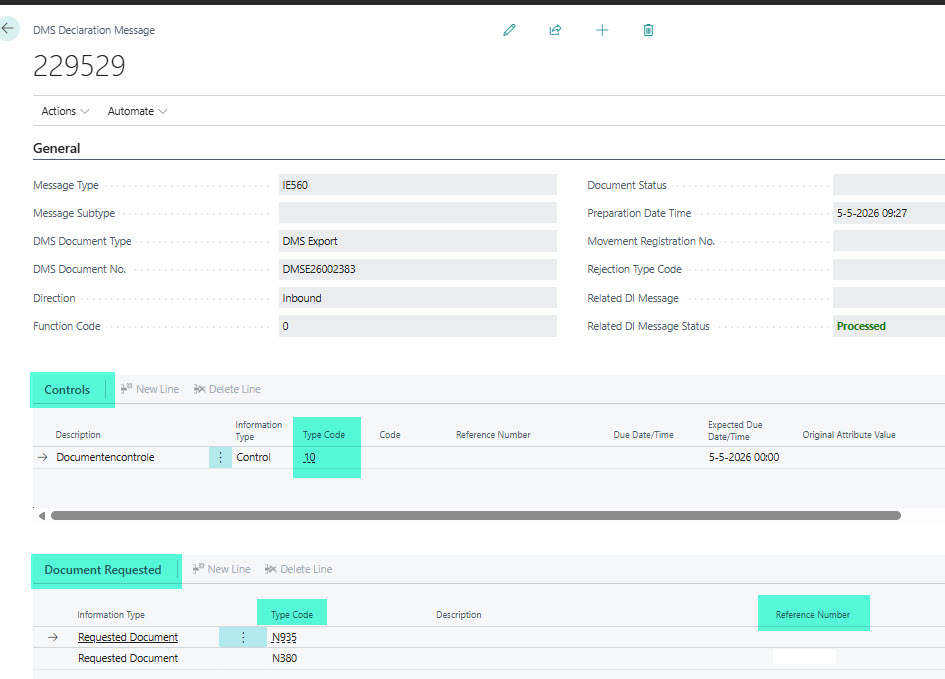
When Customs sends an inspection message, for example an IE560 message for an export declaration, open the IE560 message. The DMS Declaration Message page will open. If the control type is 10 - Document control, you can find more details about the requested documents on this page.
Step 3: Open the requested documents page
Go back to your declaration. Click Related > Additional Documents > Requested Documents. On the DMS Requested Document page, the Type and Reference No. of the requested document are already filled in automatically.
Step 4: Add the document link
Drag the documents that you want to send to Customs into the Links factbox on the right side of the declaration page. Then go to the DMS Requested Document page and click the Requested Documents URL tab. In the Document URL field, click the three dots.

A list will open with all documents that have been uploaded to the Links factbox. Select the correct document. The link will then be filled in automatically in the Document URL field.
Do you have multiple PDF files for the same requested document type? You can add multiple documents here.
Step 5: Send the requested documents to Customs
Go back to your declaration. Click the status step Create DMS Requested Document.
This will create and send the requested document message to Customs:
- For DMS Export, this triggers message CCPRD.
- For DMS Import, this triggers message IE446.
The functionality works in the same way for both DMS Import and DMS Export.
After Customs has processed the documents, you will receive either:
- a rejection message, such as IE456 or IE556, or
- a confirmation message, CCRCV.