DESADV Delivery Flows Configuration Guide
Overview
This document describes how to configure the DESADV (Delivery Advice) EDI message flows in Boltrics, including address/GLN setup, message types, and triggering conditions. Use this as a reference when you implement or audit your DESADV/delivery EDI flows.
Prerequisites
- Access to Boltrics system with EDI configuration permissions
- Understanding of EDI message structures and GLN concepts
- Access to DataHub for flow management
- Trading partner agreements and GLN specifications
- If you need assistance with EDI concepts, you are always welcome to join one of our Data Integration Q&A sessions. Please schedule an appointment through our Boltrics Academy: https://boltrics.sharepoint.com/sites/BoltricsAcademy.aspx (see Events section)
Table of Contents
- GLN/Address Configuration
- Trigger Conditions & Status Functions
- Configuring the DESADV Message Type & Transport
Step-by-Step Configuration Process
1. GLN/Address Configuration
To ensure correct delivery notice messages (DESADV), addresses and their GLNs must be set up properly.
Before configuring DESADV addresses and flows, you must obtain a complete EDI profile from your trading partner. This profile contains all the technical specifications and business rules required for successful EDI communication.
Address GLN Setup
For every delivery address, ensure the correct GLN is entered in the EAN Code field for that address.
Key Points:
- The GLN here represents the actual delivery address
- GLN must match the trading partner's specifications exactly
- Incorrect GLNs are a frequent source of EDI message failures
- Always verify GLNs with your trading partner before implementation
Parent-Child Address Relationships
Many delivery addresses belong to a hierarchy, e.g., they have a main/parent address. For example, there may be one "HEAD address" (also called a "UNB address") which is where the EDI message for that customer/party actually gets delivered.
Configuration Steps:
- If an address has a parent address, set the Parent Address field to point to the main (parent) address
- The parent address itself should also have its own record, with the correct GLN in its EAN Code field
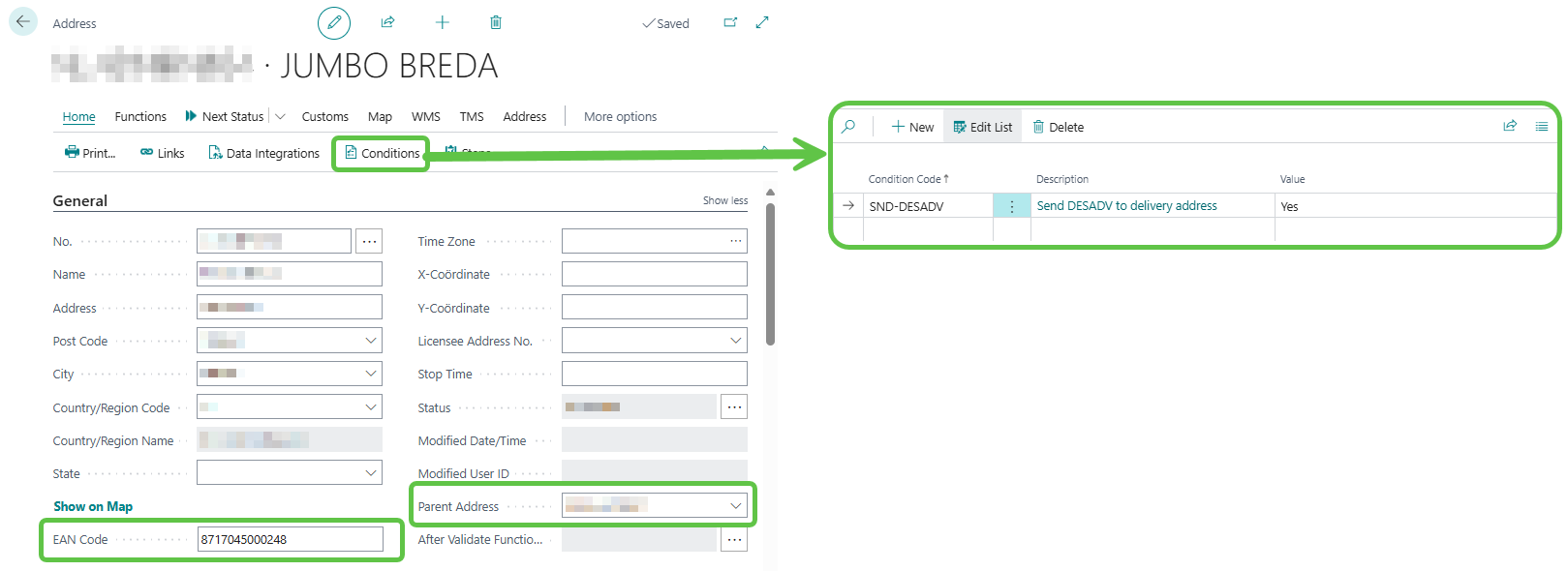
Example Configuration:
| Location | GLN (EAN Code) | Parent Address |
|---|---|---|
| Jumbo DC Woerden | 8717045000217 | Veghel Main DC (GLN 8717045000002) |
| Jumbo DC Breda | 8717045000248 | Veghel Main DC (GLN 8717045000002) |
Document Party Addresses
📚 Important: Document Party addresses are used when the EDI message requires specific parties (e.g. Buyer/Supplier) that are different from the ship-to or delivering-party address.
For each party (BUYER, SUPPLIER, DELIVPARTY), the system first checks if the EDI message contains a specific DocumentParty block with the correct PartyTypeCode and a PartyAddress with an EANCode.
- If such a block is present, this EANCode is used in the EDI message.
- If it is not present, a fallback is used:
- For BUYER: ShipToAddress/EANCode
- For SUPPLIER: Customer/EANCode
- For DELIVPARTY: ShipToAddress/EANCode
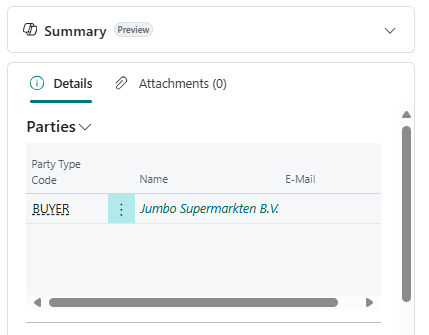
Options (how to add a Document Party Address):
- Create a Document Party Address, or
- Use an incoming EDI message to configure it, or
- Use the Address Party Template functionality → WMS setup.
Required Party Codes for EDI Messages:
- BUYER: The purchasing organization
- SUPPLIER: Your organization as supplier
- DELIVPARTY: The party responsible for physical delivery
Implementation:
- Use these GLNs correctly in the message mapping so that the party addresses in the EDI message correspond to the correct entities
- Ensure GLN consistency across all party types
2. Trigger Conditions & Status Functions
DESADV messages must only be sent when certain conditions are met. These are configured via:
Address Condition Setup
Set a boolean condition or flag on the delivery address:
- Example: "SND-DESADV = Yes"
- This flag indicates that for this address DESADV should be triggered
Status Function Configuration
The logic in the status function should check:
- The above condition (DESADV flag) is set
- The agreement (overeenkomst) setting for the customer/party indicates that DESADV messages are permitted/required
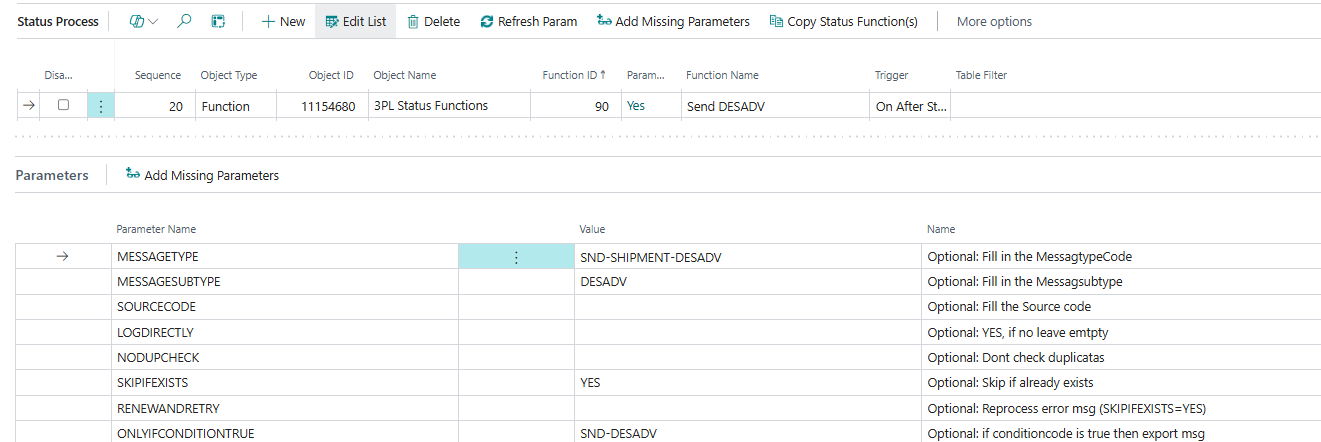
3. Configuring the SND-SHIPMENT-DESADV Message Type & Transport
Navigate to the marketplace and initialize the SND-SHIPMENT-DESADV
Message Type Configuration
- Open the EDI message SND-SHIPMENT-DESADV
- Configure the Agreement for the relevant customer to enable DESADV messages
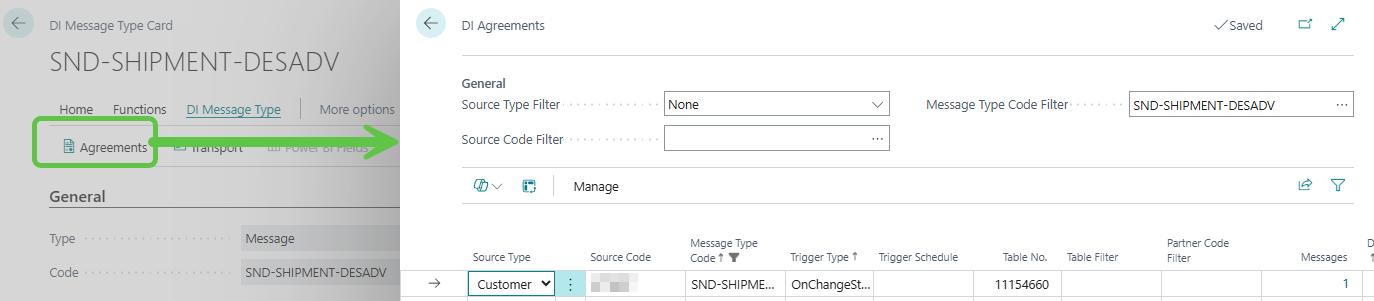
Transport/Source Settings
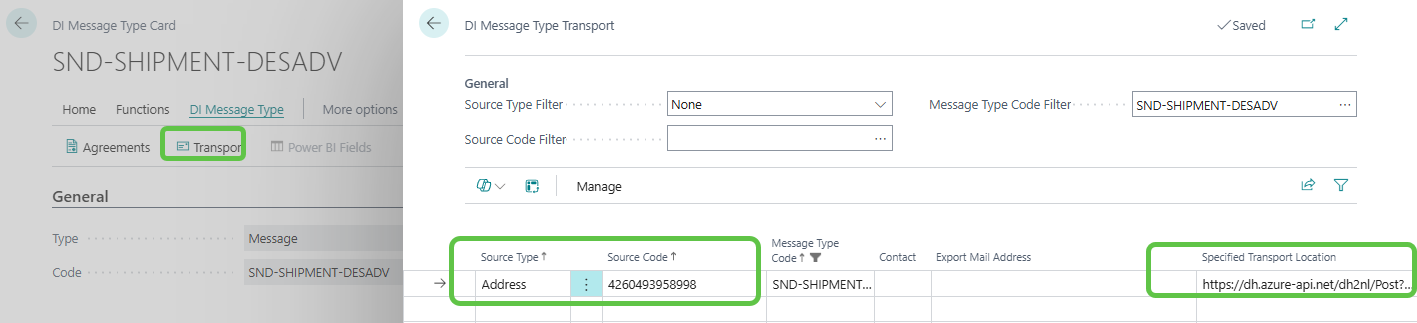
Step 1: Navigate to Transport Settings
- Navigate to Transport in the ribbon/menu EDI Message Types
Step 2: Configure Source Settings
- Set Source Type to Address
- Set Source Code to the GLN of the address that will send or receive the message
- If using a main/head/parent address, you may use its GLN
- Otherwise use the specific delivery address's GLN
Step 3: Configure DataHub Integration
- In the Specified Transport Location field, enter the URL of the corresponding DataHub flow
- To get that URL: go to the DataHub Flow list → select the flow line → in the ribbon/menu click Flow Management → Copy URL
Summary
- ✅ Set up address with EAN (GLN) and parent address (GLN)
- ✅ Set up address condition
- ✅ Set up status template action to trigger DI message type SND-SHIPMENT-DESADV with condition in place
- ✅ Initialize SND-SHIPMENT-DESADV message type from the Marketplace if not yet done
- ✅ Set up SND-SHIPMENT-DESADV → Agreement and Transport location