Boltrics Contact List
Purpose
Within the customer environment, a central contact list is available containing all registered contacts of the organization. From this list, users can submit requests to add, modify, or remove contacts. These requests are handled via a support ticket that is automatically created.
How to use
To make changes to the contact list:
1. Search Boltrics contact list
Click on the search-action:  and type: Boltrics Contact List to find the page.
2. Start a request
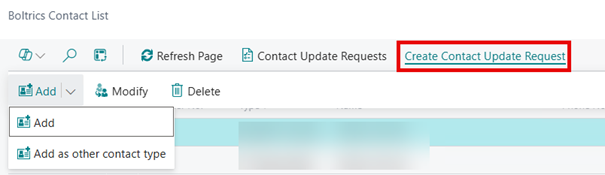
Click on the action: Create contact update request to start a request.
Actions
Add: Adds a new user to the contact list.Add as Other Contact Type: Adds another contact type to an existing contact. For example, adding the update contact type so a key user is informed of updates.Modify: Changes the phone number or email address of a contact.Delete: Deletes the contact entirely or removes a contact type from the contact.
3. Add new contact
The action: Add will open the following page to register the information of a completely new user.
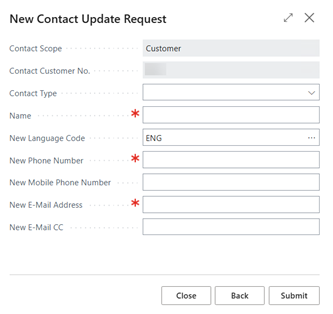
Fill in the required fields: contact type, name, e-mail address, phone number and language code and submit your request.
4. Add other contact type
Select the required contact in the contact list en click on the action: Add other contact type. This will open a selectionpage to add a new contact type for the contact. E.g., adding a key user as an update contact. Click on submit to confirm the request.
| Type of Contact | Description |
|---|---|
| Keyuser | A user who has successfully completed the Key User training and possesses in-depth knowledge of all system processes. The Key User acts as the primary point of contact within the organization and is authorized to submit support requests to the Support Team. |
| Update Contact | The designated contact who is informed about system updates, releases, and other relevant communications. |
| System Engineer/ IT responsible | The designated IT contact responsible for the technical management of the system within the organization. |
| Escalation Contact | This type can only be assigned to customers who have an active support contract that includes escalation services. |
| Customs Responsible | Dedicated contact for customs-related activities. |
| Invoice Contact | Designated contact responsible for handling invoicing matters on the customer's side. |
| Academy user | This user will receive access to the Boltrics Academy. Please be aware that registering an Academy user will result in recurring monthly charges. |
5. Modifying
Select the option: Modify to edit existing details such as email address or phone number. After changing submit your request.
6. Deleting
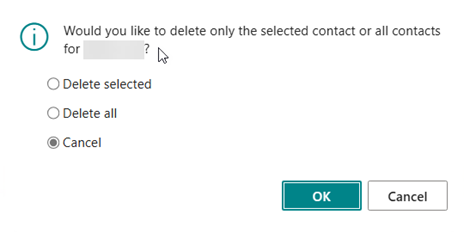
Select the option: Delete to remove a contact from the contact list entirely or to remove a contact type from the contact.
Tips & Limitations
Note
- Adding new contacts or modifications on contacts will automatically generated a support ticket so the Boltrics support team can process the request according to the standard procedure.
- Submitted requests can be reviewed under: Contact update requests.
Options
Delete Selected: Deletes only the selected contact type.Delete All: Deletes the entire contact, including all contact types associated with the selected contact.Cancel: Returns to the contact list page.