Record Changes
Record Changes is a framework that enables administrators to configure automatic logging and follow-up processing whenever data is inserted, modified, or deleted in Business Central. With Record Change Setups, you can monitor specific fields on specific tables, group related changes together, and trigger downstream automation without writing custom code.
Overview
Record Changes provide a flexible way to observe data mutations in 3PL Dynamics and react to them. Each configured setup subscribes to the standard database triggers (OnDatabaseInsert, OnDatabaseModify, OnDatabaseDelete) for a chosen table and writes the relevant changes to the record change log. Optionally, a Function Set Macro is executed asynchronously once the changes are deemed complete.
Key capabilities:
- Field-level logging: Track which fields were modified, with the old and new values stored for auditing and automation.
- Record-level logging: Log record insertions and deletions, including field values captured at the moment of deletion.
- Parent grouping: Use a Table View to roll child-record changes up onto a parent record (for example, document line changes logged against the document header).
- Criteria filtering: Restrict logging using table filters and Criteria Functions so setups only apply to relevant records.
- Debounced processing: Introduce a Record Change Duration so bursts of changes are consolidated into a single follow-up action.
- Automated processing: Execute a Function Set Macro on each logged entry using a dedicated Job Queue task.
- Operational tooling: View, retry, skip, or manually reprocess entries from the Record Change List page.
When to Use Record Changes
Record Changes are ideal for scenarios where you need to observe data mutations and react to them, either for auditing or for automation:
- Change auditing: Keep a structured history of who changed which field, when, and from what value to what value.
- Event-driven automation: Trigger a Function Set Macro when specific fields on a document are changed.
- Integration triggers: Schedule outbound data integration messages after business-meaningful changes have been completed.
- Debounced follow-ups: Wait until a user has finished editing a record before kicking off expensive downstream logic.
- Cross-record signals: Roll up changes on child tables (for example lines, details, or related records) to their parent so follow-up logic runs once per parent.
Tip
Record Changes complement Event Rules. Event Rules enforce validation before a record is saved; Record Changes observe and react after the change has been committed to the database.
Create a Record Change Setup
To create a new Record Change Setup:
Search for and open the Record Change Setup page.
Click New to create a new setup.
Fill in the required fields:
- Code: Enter a unique code to identify the setup.
- Description: Provide a clear description of what the setup observes.
- Table Caption: Choose the table whose records should be monitored.
Optionally configure:
- Parent Table View Code: Reference a
WMS Table Viewthat maps the source table to a parent table. When set, log entries are grouped and attached to the resolved parent record(s) instead of the record itself. Leave blank to log against the record being changed. - Table Filter: Restrict the setup so it only applies to records matching a table filter.
- Criteria Function Code: Reference a Criteria Function for advanced, code-based applicability checks that go beyond a simple table filter.
- Valid From / Valid To: Limit when the setup is active. A setup is only evaluated if the work date falls within this range. Leave both blank for an always-active setup.
- Blocked: Temporarily disable the setup without deleting it.
Important
Date filters on Valid From and Valid To are compared against the user's work date.
How Triggers Are Registered
When a setup is activated, its table number is registered as a "table of interest". From that point on, every INSERT, MODIFY, and DELETE on that table is inspected by the framework. Records that do not match the setup's table filter or criteria function are skipped.
Note
The first time a setup is created for a table, a session restart may be required for Business Central to pick up the new database trigger subscription.
Configure Setup Lines
A single Record Change Setup can contain multiple Setup Lines. Each line represents an independent observation with its own criteria, monitored fields, and optional processing macro. This makes it possible to react differently to different kinds of changes on the same table.
In the Lines part of the setup card, click New and configure:
- Description: Describe what this line observes.
- Include Insert: Log record insertions that match this line.
- Include Delete: Log record deletions that match this line.
- Processing Function Set Macro: The Function Set Macro to execute asynchronously after the change has been logged. Leave blank for pure auditing (no automation).
- Record Change Duration: A debounce window. The earliest allowed processing time of the entry is set to "now + duration". Any additional change on the same parent record within that window pushes the processing time forward. This consolidates bursts of edits into a single macro execution.
- Table Filter / Criteria Function Code: Optional line-level criteria. Both header- and line-level criteria must evaluate to true for the line to log changes.
- Blocked: Temporarily disable the line.
Tip
Use multiple lines when different fields on the same table should trigger different downstream behaviors. For example, one line may log status changes and trigger an integration macro, while a second line on the same table logs address changes for audit purposes only.
Select Monitored Fields
Each setup line can have zero or more Fields. These are the specific fields on the parent table that the framework will inspect for value changes.
In the Fields part of the setup card, click New and configure:
- Field Caption: Select the field to monitor. The field number is stored internally, so field captions remain correct across languages.
- Log on Deletion: When the record is deleted, capture the value of this field as part of the log entry. This is useful when downstream logic still needs to know what the field was just before the record was removed.
- Blocked: Temporarily disable the field without removing it from the setup.
A field can only be added once per setup line. If no fields are configured, only record-level events (Insert/Delete) are logged for that line.
Field Change Detection
For modify triggers, the framework compares the current field value against the value loaded from the database (xRec). Only fields whose value actually changed produce a log entry. FlowFields are calculated before the comparison, so derived values are supported as well.
Criteria and Filtering
Record Change Setups support two complementary filtering mechanisms at both the header and line level:
| Filter | Purpose | Configuration |
|---|---|---|
| Table Filter | Restrict the setup to records that match a static filter expression | Edit the Table Filter field using the AssistEdit action |
| Criteria Function | Run custom AL logic to decide if the setup applies to a record | Reference a configured 3PL Criteria Function code |
Both the setup header and each setup line can define their own table filter and criteria function. A record must satisfy both the header and the line filters/functions to be logged by that line.
Note
Criteria evaluation happens for every change on every registered table. Keep filters selective and criteria functions lightweight to avoid overhead during high-volume transactions.
Parent Record Grouping
By default, a logged change is attached to the record that triggered it. In many 3PL scenarios the relevant unit of work is the parent record (for example a warehouse document rather than an individual document line). Use the Parent Table View Code field on the setup header to redirect log entries to a parent record.
When a parent table view is configured:
- The framework resolves the parent record(s) via the
WMS Table Viewmapping. - A single Record Change Entry is created or reused per parent.
- All field, insert, and delete changes on any child within that table view are attached to the parent's entry.
- All changes are consolidated on the parent so that a single processing macro execution observes the complete set of changes.
Warning
A parent table view must resolve to a limited set of parent records (the framework enforces a hard limit of 100) and must produce actual filters. An invalid or overly broad mapping will raise a configuration error at log time.
Record Change Entries and Elements
The Record Change framework persists data across two tables:
- Record Change Entry — one header record per parent record per processing window. It carries status, user, timestamps, and the earliest processing date/time.
- Record Change Element — one detail line per individual change (field change, insert, delete, or value-on-delete). Elements reference their entry via the Record Change Entry No.
Each Element stores:
- The related table number and system ID of the record that actually changed (child, in the parent-grouping scenario).
- Field number, old value, and new value (for field changes).
- Change type: Insert, Delete, Field Change, or Value On Delete.
- The originating Setup Code and Processing Function Set Macro.
- The formatted Record ID at the time of the change, so the entry remains meaningful even if the record is later deleted.
Change Types
| Type | When It Is Produced | Notes |
|---|---|---|
| Insert | The source record was inserted and the line has Include Insert enabled |
Logged once per parent entry |
| Delete | The source record was deleted and the line has Include Delete enabled |
Logged once per parent entry |
| Field Change | A monitored field changed value during insert or modify | Old and new value are recorded |
| Value On Delete | The source record is being deleted and the monitored field has Log on Deletion enabled |
Captures the last known value |
Entry Status
| Status | Meaning |
|---|---|
| New | The entry is queued and waiting for its earliest processing date/time |
| In Progress | The entry has been claimed by the Job Queue or manual action and is being processed |
| Processed | Processing completed successfully |
| Error | Processing failed; an error message and formatted call stack are stored on the entry |
| Skip | Manually skipped; the entry will not be processed |
| Retry | Manually marked for re-execution; the Job Queue task will pick it up again |
An entry without any Processing Function Set Macro is stored immediately in the Processed state; it exists purely for audit purposes and requires no follow-up work.
Processing Record Changes
The Job Queue task Process Record Change Entries drives the processing pipeline. Ensure the task is configured and active in the Job Queue.
At each run the task:
- Finds all entries with status
NeworRetrywhose Earliest Processing Date/Time has been reached. - Claims each entry by transitioning it to
In Progressunder an update lock so no other session processes the same entry. - Starts a background session (up to 10 in parallel) running the Record Change BG Processor codeunit for each claimed entry.
- The background processor consolidates all elements belonging to the entry, resolves their unique Processing Function Set Macros, and executes each macro once per unique macro code.
- On success the entry transitions to
Processed. On failure the entry transitions toError, with the error message and call stack saved for later investigation.
Consolidation of Changes
Before a macro is executed, the framework consolidates all elements of the entry per child record and per macro:
- Insert followed by Delete cancels out — no macro is executed for that child.
- Multiple field changes on the same field collapse into a single change with the original Old Value and the latest New Value.
- Field changes that are later revoked by a delete-with-value-capture are converted to Value On Delete entries.
This ensures that a burst of user edits, or a sequence of programmatic modifications within the same processing window, results in exactly one semantically meaningful macro invocation per affected record.
Macro Context
Each macro executes in the context of a temporary record with the Record Change Entry as its primary source record. A function set variable named PROCESSINGMACRO is automatically populated with the currently executing macro code, so shared macros can branch on it when needed.
View Record Changes
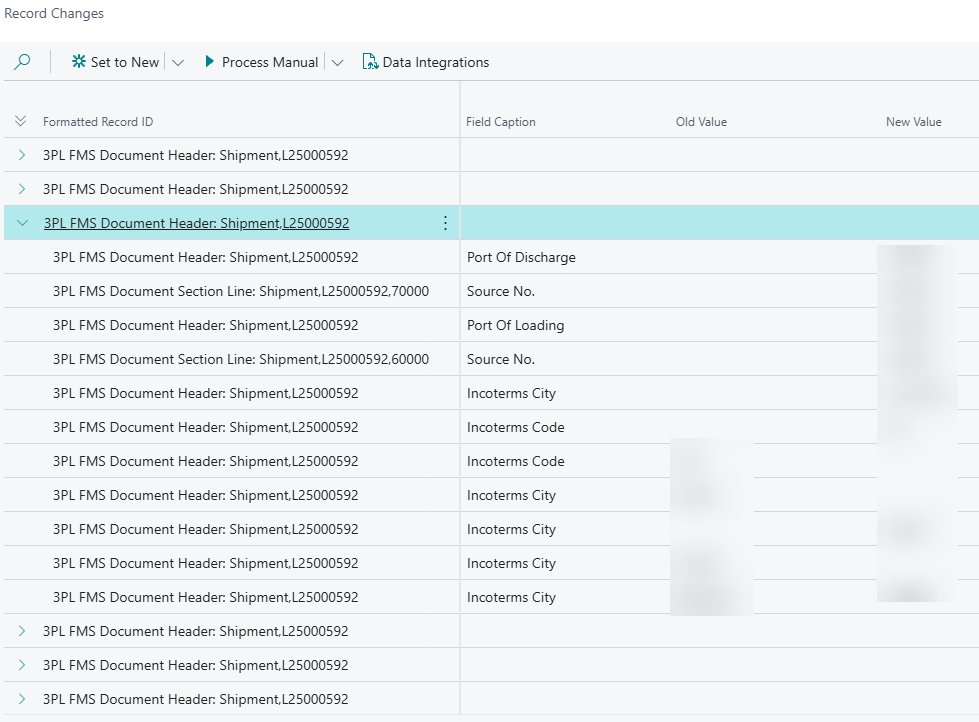
The Record Change List page shows all changes logged for the record currently in focus. It presents entries as a two-level tree:
- The top level is the Record Change Entry (one per parent record per processing window), showing status, user, and timestamps.
- The second level lists the individual Elements (field changes, inserts, deletes, value-on-delete) with their Field Caption, Old Value, and New Value.
From the page, you can:
- Set to New — move a
Skipentry back toNewfor retry. - Skip — mark one or more entries so they will not be processed.
- Retry — mark an
Erroror stuckIn Progressentry for another attempt by the Job Queue. - Process Manual — execute the entry immediately in the current session (useful for troubleshooting).
- View Error Callstack — open the full stored call stack for a failed entry.
- Data Integrations — navigate to any integration messages that reference this entry.
Only certain transitions are allowed. For example, you cannot move a Processed entry back to New, and only Error or In Progress entries can be marked for retry.
Export and Import Setups
Record Change Setups can be packaged and moved between environments. From the Record Change Setup list, use:
- Export Package — download the selected setups (including all lines and fields) as a 3PL Data Package.
- Import Package — import a previously exported package into the current environment.
This is the recommended way to promote setups from a development or test environment to production.
Performance Considerations
Record Changes execute during every database insert, modify, and delete on tables with at least one active setup. Tune your configuration with performance in mind:
- Prefer specific fields over recording every field on a table.
- Use Table Filters and Criteria Functions to skip irrelevant records early.
- Block unused setups and lines instead of deleting and recreating them.
- Use an appropriate Record Change Duration so bursts of edits are consolidated into a single macro execution.
- Monitor the Job Queue task and review entries stuck in
ErrororRetry.
Warning
Avoid adding a setup to high-frequency tables without a Parent Table View Code or a tight Table Filter. Each evaluated record incurs filter, criteria, and (if it matches) logging overhead.
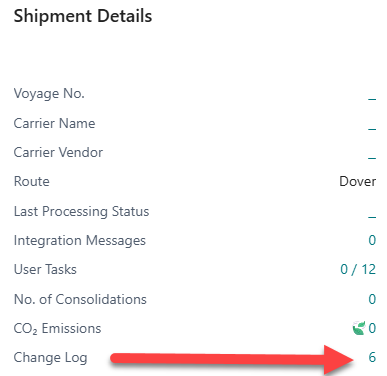
View Changes
You can view the record change entries via de factbox. The changes are grouped around the same time period
Change Log on Master Data Pages
Master data pages open the same Record Changes list from the card or the list page instead of from a fact box:
- Contact Card: the Change Log field shows the number of logged changes for the contact and stays empty when nothing has been logged. Click the number, or use the Change Log action in the ribbon, to open Record Changes for that contact.
- Contact List: select a contact and use the Change Log action to open Record Changes for the selected contact. The list itself has no Change Log column.
- Customer Card and Vendor Card: the Change Log field on the card works the same way; the statistics fact box of these cards also shows a Change Log field.
- Address Card: use the Change Log action in the ribbon.
Note
The field and the list only show changes when a Record Change Setup exists for that table (for contacts: table Contact) with at least one setup line and monitored field, and the setup was created before your current session started. See Create a Record Change Setup.
Best Practices
- Start narrow: Begin with a single setup line and a few monitored fields, then expand as requirements stabilize.
- Always set criteria: Even a simple Table Filter drastically reduces overhead on busy tables.
- Group on the parent: Use a Parent Table View Code whenever changes happen on child records but follow-up logic belongs on the header.
- Debounce correctly: Choose a Record Change Duration that is long enough to absorb user editing bursts but short enough to keep processing timely.
- Separate concerns: Use separate Setup Lines (with different macros) when distinct downstream actions are required for different field changes.
- Document the intent: Keep the Description fields meaningful; the Setup Code is referenced on every Record Change Element.
- Monitor errors: Periodically review the Record Change Entries in
Errorstatus and address recurring failures.
Suggested approach
- Create a new Record Change Setup for the child record. Best practice: start the code with an identifier that reflects the purpose. Create multiple child records if needed.
- Create a new Record Change Setup for the parent record.
- Create a Parent Table View Code to define the relationship between the child and parent.
Note
After making these changes, log in to BC again (or switch companies) to activate them. Test it first in the RAPP environment before applying it in PROD/WISH.
Examples
Example 1: Audit a Document Date Field
Scenario: Keep a history of every change to Document Date on WMS Document Header.
- Setup
- Table: WMS Document Header
- Parent Table View Code: (blank — log against the document itself)
- Line
- Description: "Audit document date changes"
- Processing Function Set Macro: (blank — audit only)
- Field
- Field: Document Date
Example 2: Trigger an Integration After Address Changes
Scenario: Whenever Ship-to Address or Ship-to City on a Sales Order changes, send an outbound integration message, but only after the user has stopped editing.
- Setup
- Table: WMS Document Header
- Table Filter:
Document Type = Shipment
- Line
- Description: "Notify WMS of ship-to changes"
- Processing Function Set Macro: NOTIFY-SHIPTO
- Record Change Duration: 30 seconds
- Fields
- Ship-to Address
- Ship-to City
Example 3: Consolidate Line Changes to the Header
Scenario: Changes on WMS Document Lines should trigger a single recalculation macro on the WMS Shipment Header.
- Setup
- Table: WMS Document Line
- Parent Table View Code: WSHIP-LINE-TO-HEADER
- Line
- Description: "Consolidated line edits"
- Include Insert: Yes
- Include Delete: Yes
- Processing Function Set Macro: RECALC-WSHIP
- Record Change Duration: 2 seconds
- Fields
- Quantity
- Location Code
Example 4: Capture a Field Value on Deletion
Scenario: When a WMS Warehouse Activity is deleted, remember its Batch No. so a downstream traceability macro can log it.
- Setup
- Table: WMS Warehouse Activity
- Line
- Description: "Batch trace on deletion"
- Include Delete: Yes
- Processing Function Set Macro: TRACE-BATCH-DELETION
- Field
- Field: Lot No.
- Log on Deletion: Yes
Related Information
- Event Rules — Validate data quality before changes are committed.
- Function Sets — Build reusable business logic for processing macros and criteria.
- Status Event Triggers — Drive automation from document status changes instead of field changes.
- Calculated Filters — Use dynamic filters inside Criteria Functions.