Device activities
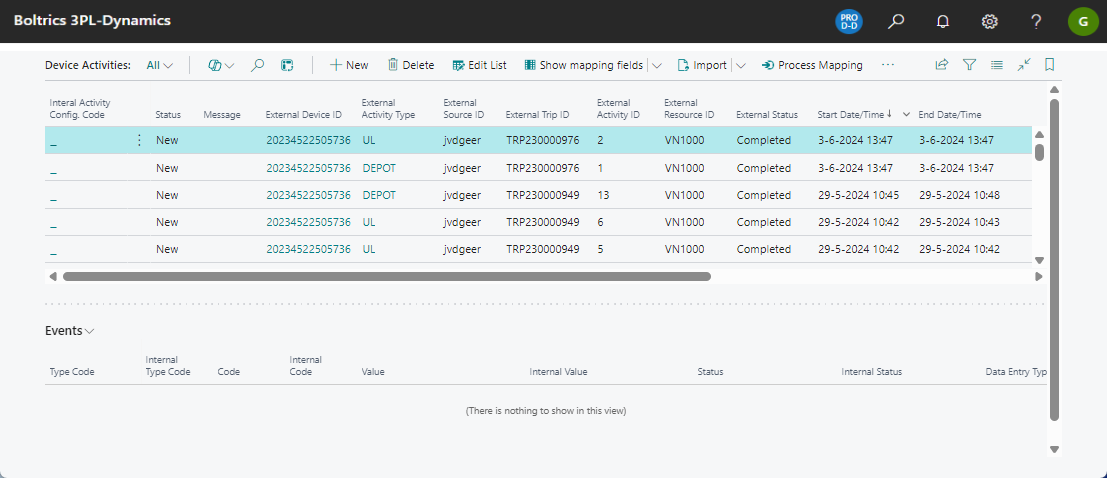
Use the Device Activity List to follow the activities that TMS receives from devices, such as a board computer or a driver app. Each line is one activity that a device reported, for example "arrived at address" or "loading started". The list shows whether TMS could map the activity to a planned activity of a trip and whether TMS processed it.
Check this list when a driver reports an activity but the trip or planned activity isn't updated.
How a device activity is handled
Device activities pass through two steps, each run by a job queue. For the full flow, see Device Framework.
- Mapping: TMS determines which device activity configuration applies and converts the external values of the device (activity type, trip, resource, status) to internal values. The status becomes Mapping Succeeded or Mapping Failed.
- Processing: TMS runs the functions of the configuration, for example to update the status or the actual times of the planned activity. The status becomes Processing Succeeded or Processing Failed.
Open the device activity list
- Choose the
 icon, enter Device Activity List, and then choose the related link.
Statuses
| Status | Meaning |
|---|---|
| New | The activity is received and not yet mapped. |
| Mapping In Progress, Mapping Succeeded, Mapping Failed, Mapping Skipped, Mapping Outdated | The result of the mapping step. |
| Retry Process (pending) | The activity is waiting to be processed again. |
| In Progress, Processing Succeeded, Processing Failed, Processing Skipped | The result of the processing step. |
| Canceled, Skipped | The activity is not processed. |
| Post Error | An error occurred when posting the activity. |
The column Status Text shows the message that belongs to the status, for example the reason for a failure.
Actions
| Action | Description |
|---|---|
| Process Mapping | Starts mapping the selected activity. |
| Process Record | Processes the selected activity. |
| Change status to Mapping Succeeded | Resets an activity that failed processing, so the job queue processes it again. |
| Show mapping fields / Hide mapping fields | Shows or hides the columns with the internal (mapped) values. |
| Import | Opens a dialog to import a file with activities. |
| Post | Sends the selected activity to the posted device activities. |
| Mapping Result | Shows the result of the mapping. |
| Orders | Opens the order related to the selected activity. |
| Carriers | Shows the carriers related to the selected activity. |
| Callstack | Shows the technical call stack of an error. |
| Data Integration | Shows the data integration messages of the activity. |
| Color Setup and Show Template | Set up the colors of the list, and show the template of the activity. |
Fields
For most fields, the list shows two columns: the external value as received from the device, and the internal value that TMS mapped it to.
| Field | Description |
|---|---|
| External Device ID / Internal Device ID | The ID of the device that reported the activity, and the device in TMS. |
| External Activity Type / Internal Activity Type | The type of activity as the device reports it, and as TMS knows it. |
| External Trip ID / Internal Trip ID | The trip as received from the device, and the trip in TMS. |
| External Resource ID / Internal Resource ID | The resource as received from the device, and the resource in TMS. |
| External Status / Internal Status | The status as received from the device, and the mapped status. |
| Start Date/Time, End Date/Time | The date and time of the activity. |
| Latitude, Longitude | The position as received from the device. |
| Internal Activity Config. Code | The device activity configuration that TMS used for the activity. |
| Processing Start, Processing End | When TMS started and finished processing the activity. |
If a device activity contains multiple events, the details appear on the Events tab.