Device Activity Configuration
General
The Device Activity Configuration contains a set of Mapping- and Processinglines which are applicable on incoming messages from a Device
The page can be opened from : Role Centre > Setup > TMS Setup > Device Setup > Device Activity Configuration.
Functionality
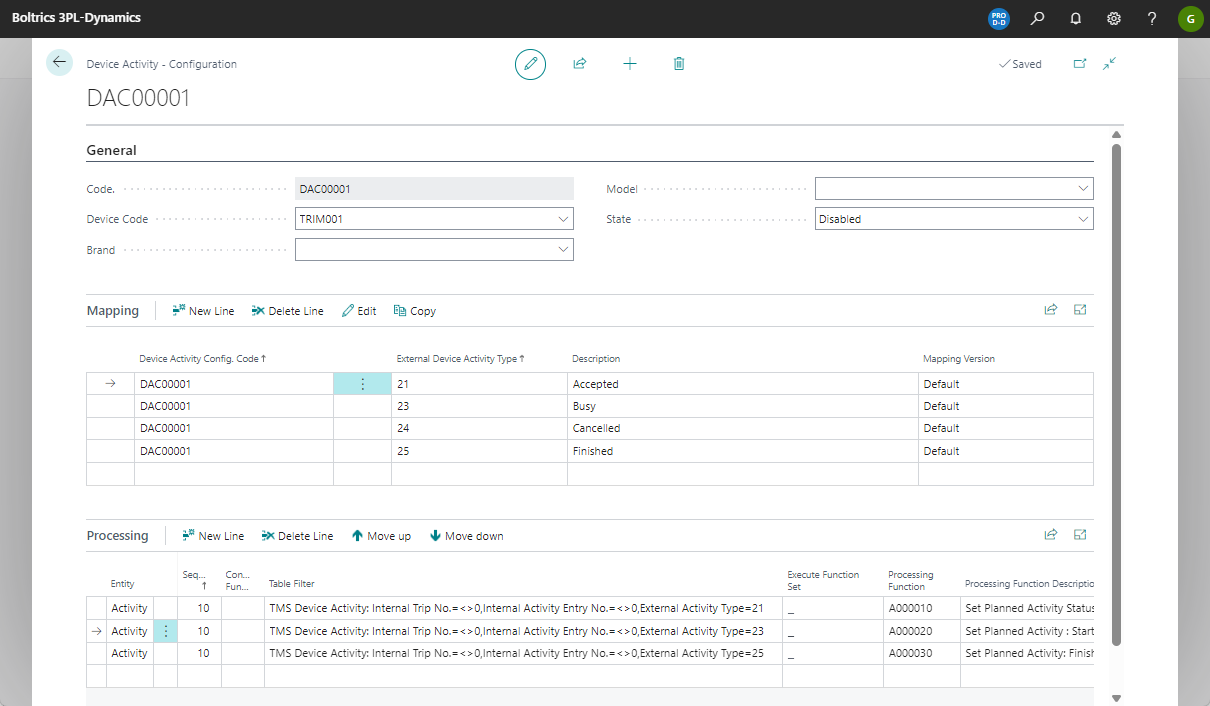
Tab: General
Contains the basis information on which a Device Activity Configuration is applicable. Multiple Device Activity Configurations can be setup to integrate for example with an Automated Planning System and multiple Boardcomputerplatforms.
Fields
| Field | Description |
|---|---|
| Code | An automatically generated code for the Device Activity Configuration. |
| Device Code | Only contains a value if a Device Activity Configuration is applicable on a specific device. |
| Brand | Only contains a value if a Device Activity Configuration is applicable on a specific brand of devices. |
| Model | Only contains a value if a Device Activity Configuration is applicable on a specific model of devices. |
| State | Options: -Enabled -Disabled |
Tab: Mapping
Actions
| Action | Description |
|---|---|
| New Line | Creates a new line above the current selected line. |
| Delete | Deletes the current selected line. |
| Edit | Opens the page: Device Activity Mapping in edit-modus. |
| Copy | Copies the details from an other line to the current line. A selection page will be opened to select a line to copy from. |
Fields
| Field | Description |
|---|---|
| Device Activity Config. Code | Automatically filled, the same value as in the Tab: General, Field: Code. |
| External Device Activity Type | The value received from in the integration Message. |
| Description | A full description of the External Device Activity Type Id. |
| Mapping Version | Options: - Default - Legacy |
Note
Select a line and click on the action: Edit to consult the page:Device Activity Mapping on which mappings can be configured.
Tab: Processing
Actions
| Action | Description |
|---|---|
| New Line | Creates a new line above the current selected line. |
| Delete Line | Deletes the current selected line. |
| Move up | Moves the current selected line one line up. |
| Move down | Moves the current selected line one line down. |
Fields
| Field | Description |
|---|---|
| Entity | Select the entity on which the line is applicable. options: - Activity - Activity Event - Order - Order event - Carrier - Carrier Event. |
| Sequence | Apply a sequence if multiple lines have the same value in the field: Table Filter, so processing is done in the correct sequence. |
| Conditional Function Set | To add specific filters, applicable when the functionality in the field: Table Filter is not sufficiently. |
| Table Filter | The filter applicable on which the process has to be executed. |
| Execute Function Set | To add specific functions, applicable when the functionality in the field: Processing Function is not sufficiently. |
| Processing Function | Select a predefined function which has to be processed. |
| Processing Function Description | The description of the Processing Function selected. |
| Modified At | The date/time on which the line was modified last. |
Allow actual date/time updates when a planned activity is ready
By default, a planned activity blocks any change to its actual starting or ending date/time as soon as it's marked Ready — both when a user tries to change it and when a message from a device or driver app tries to. This protects a completed stop from silently getting a different actual time.
Sometimes a driver reports a stop as finished by mistake, or corrects an already finished stop afterward. To let a device message still update the actual date/time in that case, add the parameter ALLOW WHEN READY on the processing function SETPLANNEDACTSTARTDT (actual starting date/time) or SETPLANNEDACTENDDT (actual ending date/time), and set it to Yes. Configure the parameter the same way as the existing APPLY TO STOP and ACTIVITY FILTER parameters, on the Parameters tab of the function's Function Set Entry.
Note
- The default value of
ALLOW WHEN READYis No, so existing setups keep working exactly as before: an update to a ready planned activity fails. - Setting
ALLOW WHEN READYto Yes only allows the actual date/time to be filled in or corrected. Clearing an actual date/time on a ready planned activity remains blocked, and the actual starting date/time must still be before the actual ending date/time. - The planned activity keeps its Ready status; this parameter doesn't change that field.
- Manual changes on the Planned Activity page stay blocked regardless of this parameter — it only applies to the SETPLANNEDACTSTARTDT and SETPLANNEDACTENDDT processing functions.