TMS Web Portal
General
This page contains information about the TMS Web Portal. You can install it from TMS Web Portal Setup.
Users can add and modify pages when required. For general information about setting up and editing the web portal, see Web Portal.
Functional
Tip
Customers can also create transport orders themselves in the web portal. For more information, see TMS Web Portal order entry.
Navigate the web portal
At the top of the web portal, a menu is available with the following options:
| Menu | Options |
|---|---|
| Finance | Contains the subpages Sales Invoices and Sales Credit Memos. Only posted invoices and credit memos are shown in the web portal. |
| TMS Orders | Contains the subpages Transport Orders and Posted Transport Orders. |
| TMS Analysis | Contains the subviews Services and Posted Services. The view shows revenue lines related to TMS orders. |
| Dashboard | Contains three charts based on TMS orders. Select a value to open the list of TMS orders related to the chart. |
| TMS Order Entry | Contains a wizard to create new TMS orders and addresses and a page to edit transport orders. Only orders that have not been planned on a Trip can be modified. |
Note
- When creating new orders, users can also add new addresses.
- On the upper-right corner of list pages, users can find an export button to download data from the web portal.
Finance

1. Sales Invoices
A page that shows a list of all posted sales invoices. A download icon at the beginning of a line indicates that reports and files linked to the posted invoices can be downloaded from the page.
2. Sales Credit Memo
A page that shows a list of all posted sales credit memos. A download icon at the beginning of a line indicates that reports and files linked to the posted invoices can be downloaded from the page.
Note
The Sales Invoices and Sales Credit Memo pages use the Finance web portal role. Only web portal users with this role can view these pages.
TMS Orders

1. Transport Orders
A page that shows a list of transport orders. Use the Search field or Filter button to find the required orders. A download icon at the beginning of a line indicates that files are linked to the transport order and can be downloaded from the page. Examples include proof of delivery documents, CMR documents, and pictures of the cargo.
Select a transport order to open the card page. The card page shows more details and includes the Goods, Services, and Status Log tabs.
2. Posted Transport Orders
A page that shows a list of posted transport orders. Use the Search field or Filter button to find the required orders. A download icon at the beginning of a line indicates that files are linked to the transport order and can be downloaded from the page. Examples include proof of delivery documents, CMR documents, and pictures of the cargo.
Select a transport order to open the card page. The card page shows more details and includes the Goods, Services, and Status Log tabs.
Note
The Transport Orders and Posted Transport Orders pages use the Transportation web portal role. Only web portal users with this role can view these pages.
TMS Analysis
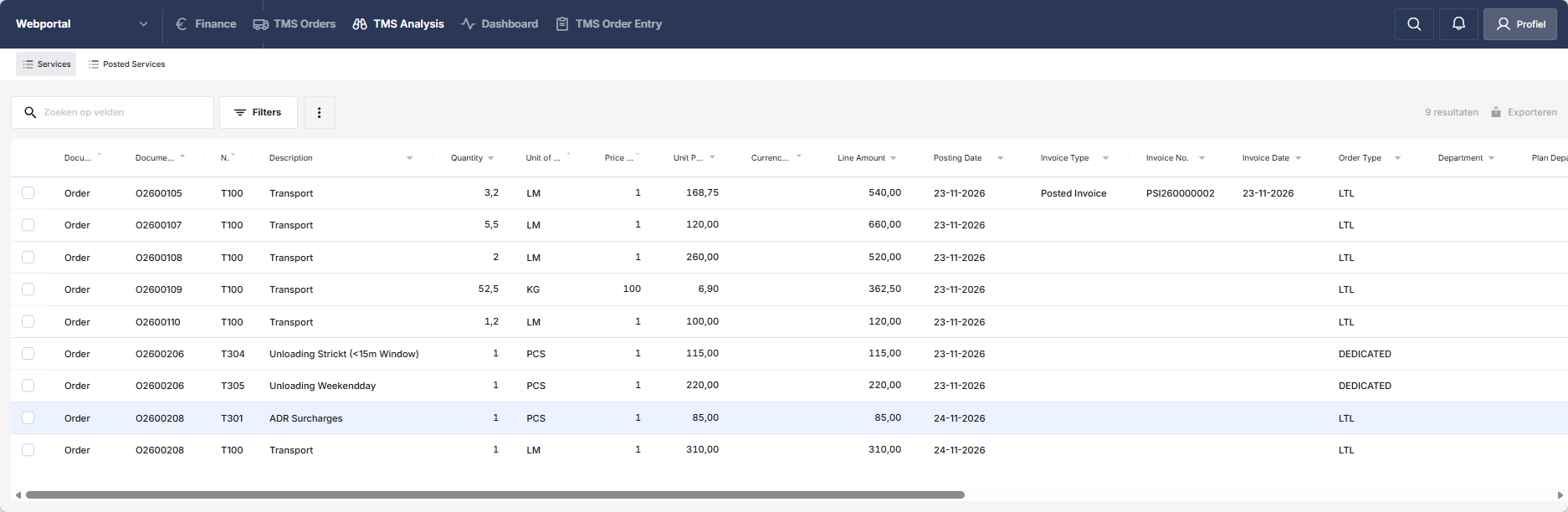
1. Services
A page that shows a list of revenue lines that have not been posted. Each line includes related transport order information, such as order type, planned department, loading address, unloading address, quantity, and payable weight. If the service has been charged to the customer on a sales invoice, this information is also shown.
2. Posted Services
A page that shows a list of posted revenue lines. Each line includes related transport order information, such as order type, planned department, loading address, unloading address, quantity, and payable weight. If the service has been charged to the customer on a sales invoice, this information is also shown.
Note
The Services and Posted Services pages use the Transportation web portal role. Only web portal users with this role can view these pages.
Dashboard

1. Transport Orders
A chart that shows the number of transport orders per category. By default, the category is Order Type. To use another category, open the web portal view Dashboard TMS (D-004). Set the Published parameter to Disabled, change the Categorize On value, and then set Published to Enabled.
2. Orders per Week
A chart that shows the number of transport orders for the current week, previous week, and next week.
3. Transport Orders Status
A chart that shows the number of transport orders per category. By default, the category is Status.
Note
The Dashboard page uses the Transportation web portal role. Only web portal users with this role can view this page.
TMS Order Entry
When you select this button, a wizard starts to help you create a transport order. For more information, see Create a transport order in the web portal.
Note
- The TMS Order Entry functionality isn't included in 3PL Dynamics Essential. An additional license is required. Contact your account manager or local 3PL Dynamics partner for more information.
- The Create Transport Orders and Edit Orders pages use the Transportation Order Entry web portal role. Only web portal users with this role can view these pages.
Edit Orders
When you select this button, a list of transport orders that can be modified is shown. By default, orders can be modified while their status is less than Planned. Select an order to open a wizard and modify the order.
Tip
For more information, see the e-learning Web Portal 3PL in the Boltrics Academy:
Settings
The following pages contain settings that apply to the TMS Web Portal:
| Page | Description |
|---|---|
| Web Portal Initialization | Basic settings for the web portal |
| Web Portal Users | Grant users access to the web portal and assign roles |
| Web Portal User Roles | Combine views and grant permissions |