Order type
Use order types to let different kinds of transport orders move through 3PL Dynamics TMS in different ways. An order type determines, for example, which number series and status templates an order, its sections, and its trips get, and it can affect how revenue is determined.
Set up at least one order type for each company. How many you need depends on the nature of your business. A typical split is by service, such as full truck load, groupage, or container transport, when these services need their own numbering, status flow, or invoicing rules.
Set up an order type
- Choose the
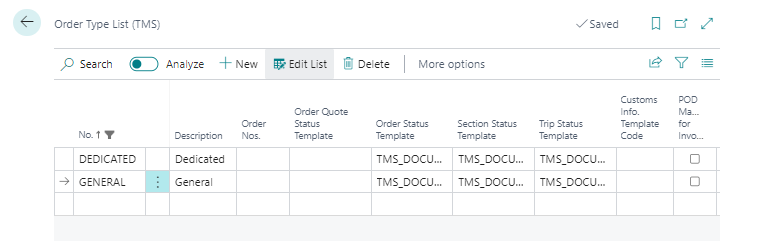
 icon, enter Order Type List (TMS), and then choose the related link.
 - Choose New to create an order type.
- Enter a No. and a Description.
- Fill in the fields as necessary. The following sections describe the fields that need more explanation.
Numbering and status flow
Give each order type its own number series and status templates when you want a separate numbering or status flow per order type.
- Order Nos.: The number series for orders of this order type. If you assign a unique number series per order type, each order type gets its own order numbers.
- Order Status Template, Section Status Template, and Trip Status Template: The status template that a new order, section, or trip of this order type starts with. If you assign a unique status template per order type, each order type gets its own status flow. Grouped orders and quotes use the File Status Template and Order Quote Status Template in the same way.
When a document has no order type, 3PL Dynamics uses the default status templates from Transport Setup instead.
Proof of delivery and invoicing
POD Mandatory for Invoicing specifies that a proof of delivery (POD) must be registered before an order of this order type is invoiced. The setting works together with the same setting on the customer:
- If the setting isn't enabled on the bill-to customer, no POD is required, regardless of the order type.
- If the setting is enabled on the customer and no order type has it enabled, a POD is required for all orders of that customer.
- If the setting is enabled on the customer and at least one order type has it enabled, the setting on the order type of the order decides.
Use the setting on the order type when a customer requires a POD for some services but not for others.
Addresses and depots
The copy fields on an order type copy an address that a user enters on an order to another address field on the same order. Use them to save data entry when, for example, the pickup depot is always the same as the loading address.
- Copy From Address To: Copies the From Address to the Pickup Depot, the Drop Off Depot, or the To Address.
- Copy To Address To: Copies the To Address to the Pickup Depot, the Drop Off Depot, or the From Address.
- Copy Pickup Depot To and Copy Drop Off Depot To: Copy a depot to one of the other depot or address fields.
The address is only copied when the target field is empty or still holds the value that was copied earlier, so a value that a user entered manually isn't overwritten. To copy an address to a depot field, the address must be marked as a terminal address. The dates and times of the loading or unloading are copied along with the address.
Get From Address from Customer when empty and Get To Address from Customer when empty fill an empty From Address or To Address of a new order with the from or to address that is set up on the customer. These fields only work when Get From or To Address from Order Type is enabled in Transport Setup.
Templates that are applied to new orders
- Party Template Code: The party template that is applied when you create a new document.
- Event Milestone Template: The event and milestone template that applies to orders of this order type.
- Customs Info. Template Code: The customs information template that is applied to the order when you select this order type. If you leave the field empty, no customs information is added.
Conditions and posting
- Skip Conditions at Document Header: When enabled, the conditions from the order header aren't merged into the document lines of orders of this order type. The lines then only use the conditions from the customer, vendor, and service.
- Order Type Posting Group: The posting group that determines the reservation accounts (sales and purchase) used when TMS posts revenue and cost reservations for orders of this order type. Fill in this field when you use reservations. Posting a reservation fails with an error if the order type has no posting group.
- Dimensions: Choose the Dimensions action to set default dimensions for the order type. They're used when dimensions are created for an order.