TelnetProxy V2 – Adding App Registrations
TelnetProxy V2 uses app registrations to authenticate with Microsoft 365 Business Central.
To improve performance and stability, it’s best practice to create multiple app registrations.
This allows TelnetProxy V2 to distribute the load across these registrations, resulting in a more balanced and reliable connection to Business Central.
To add additional app registrations, you’ll need access to the server that hosts both Pragmasys Telnet Server and TelnetProxy-V2.
You also need Global Administrator permissions in your tenant to create the app registrations in Azure.
Note
Versions before 3.12 don't support multiple app registrations. See the TelnetProxy Overview for the latest versions and how to update.
Steps to Add App Registrations
Log in to the server.
Navigate to:
C:\Program Files\Boltrics\TelnetProxy-V2Run
admin.cmdas Administrator.The following menu will appear:
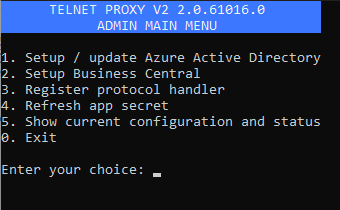
Select option 1: “Create new App Registration”.
Follow the on-screen instructions and log in with an admin account from your tenant.
When the process completes successfully, the screen will show confirmation.
You’ll also see a Client ID and a name in the format Boltrics Telnet Proxy 1, Boltrics Telnet Proxy 2, and so on — depending on how many app registrations you’ve created so far.
Make note of these details.The same information can also be found in the file
appsettings.jsonin the same folder.Log in to your Business Central PROD environment and navigate to Microsoft Entra Applications.
Click + New.
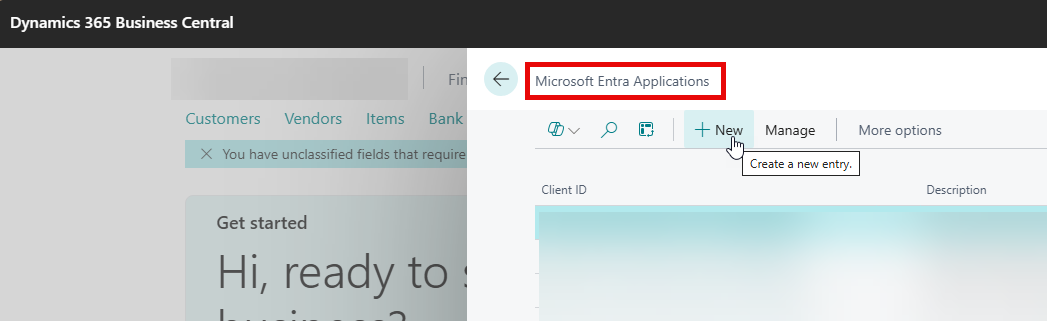
Fill in the following details:
- Client ID: use the Client ID displayed during setup.
- Description: use the name you noted earlier (for example, Boltrics Telnet Proxy 1).
- State: set to Enabled.
Add the following Permission Set: '3PL TELNET PROXY'.
You can repeat these steps to create additional app registrations.
Recommended: create 4 to 6 app registrations for optimal performance and reliability.