Visual Planning Sorting Template
General
A sorting template defines the sorting order in the Unplanned Sections view on the Visual Planning - Window 1: Unplanned Sections screen. For example, by loading date and then by postal code. Use sorting templates so planners can quickly switch to the sort order that fits the work at hand without losing any filter that is already applied.
Sorting templates help you:
- Present unplanned sections in the order that is most useful for a specific planning task
- Let a user switch the sort order on the fly while keeping the active filters
- Set a default sort order per user in Visual Planning User Setup
Functionality
To open the page: Visual Planning Sorting Template:
Choose the  icon, enter Visual Planning Sorting Template List, and then choose the related link.
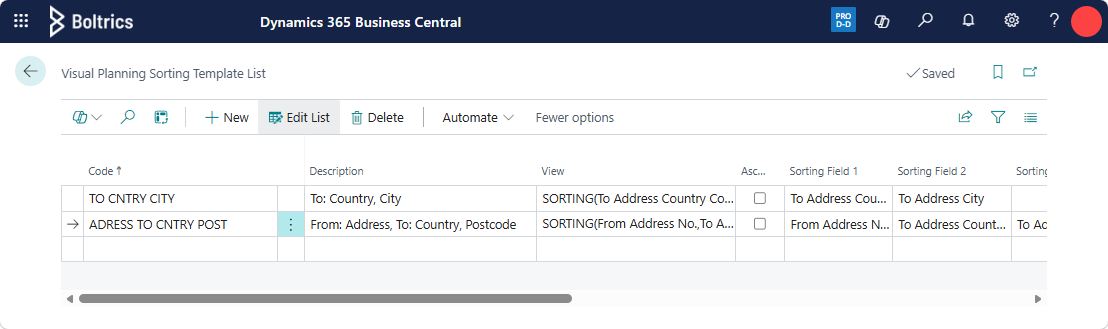
Actions
New: Adds a new line above the selected line.Edit list: Switches between view mode and edit mode.Delete: Deletes the selected line.
Fields
Code: A unique identifier for the sorting template.Description: A descriptive name for the sorting template.View: A read-only preview of the resulting sort order, built automatically from the sorting fields below.Ascending: Whether all the sorting fields below are applied in ascending (on) or descending (off) order.Sorting Field 1..10: Up to 10 fields from the transport order, applied in this order to sort the Unplanned Sections list. Choose the field to look up a valid field.
Tip
The default sorting view can be set per User by selecting the required value in the Unplanned Section Sorting field on Visual Planning User Setup.
Settings
The following settings apply:
| Page | Description |
|---|---|
| Visual Planning User Setup | Specific user settings applicable to Visual Planning functionality. |