Style Setup
Style Setup lets you color-code rows on supported list and planning pages, so you can spot orders, trips, or sections that need attention without opening each record.
Overview
Style Setup helps you:
- Highlight a row, or a single field, with a color when a field value, a Yes/No condition, or a calculated result matches a condition you define.
- Scope a rule to yourself or to a specific profile, so different users can see different highlighting on the same page.
- Color an entry on a Dynamic Factbox instead of a list column.
Supported pages
Style Setup currently supports the following pages:
Warehousing (WMS)
- Trip Advanced List, Trip Lines, and the Trip Lines subform
- Shipment List, Receipt List, and Transfer List
- VAL Order List and Purchase Order List
- Posted VAL Orders, Posted Receipts, Posted Shipments, and Posted Phys. Inv.
- My Assigned Requests, Request List, and My Department Requests
Transportation (TMS)
- Order List and TMS Trip List
- Section List and TMS Section Planbox
- TMS Irregularities List
- The Trips, Sections, Section Sequence, and Trip Stops windows on the Visual Planning screen
Forwarding (FMS)
- Request for Quotation List
- Shipment List and User Task Shipments
- Transport Booking List
- Equipment Planning
Note
This list grows as more pages adopt Style Setup. If a page you need isn't listed, contact your partner or Boltrics Account Manager.
Set up a style rule
Choose the
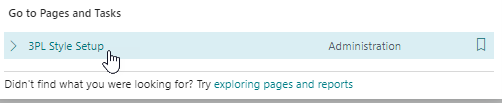
 icon, enter 3PL Style Setup v2, and then choose the related link.
On a blank line, select the Page ID of the page you want to style.
Table No.fills in automatically.In Field No., select the field to color. Choose the assist edit button to see which fields are supported for the page you selected. Leave Field No. at 0 to apply the style to every field on the row instead of a single one.
Set Type, then fill in the matching style fields. See the table below.
For the Threshold and Boolean types, choose the assist edit button on Function Set to select or create the calculation the style reacts to.
To limit the rule to one user or profile, fill in User ID or Profile ID. Leave both blank to apply the rule to everyone.

| Field | Description |
|---|---|
| Type | Determines how the style is calculated. Threshold compares a calculated result from a Function Set against Threshold 1 and Threshold 2, and applies Low Range Style, Middle Range Style, or High Range Style. Value compares the field's own value directly against the same thresholds, without a Function Set. Boolean evaluates a Function Set to Yes/No and applies True Style or False Style. |
| Code | Leave blank to style the page's list. Fill in a code that matches an entry on Dynamic Factbox Setup to style that factbox entry instead — Field No. isn't required in that case. |
Once saved, the rule applies immediately the next time the page is opened or refreshed:
