Tab: Planned Sections
General
The tab: Planned Sections contains a line for each section planned on the selected trip.
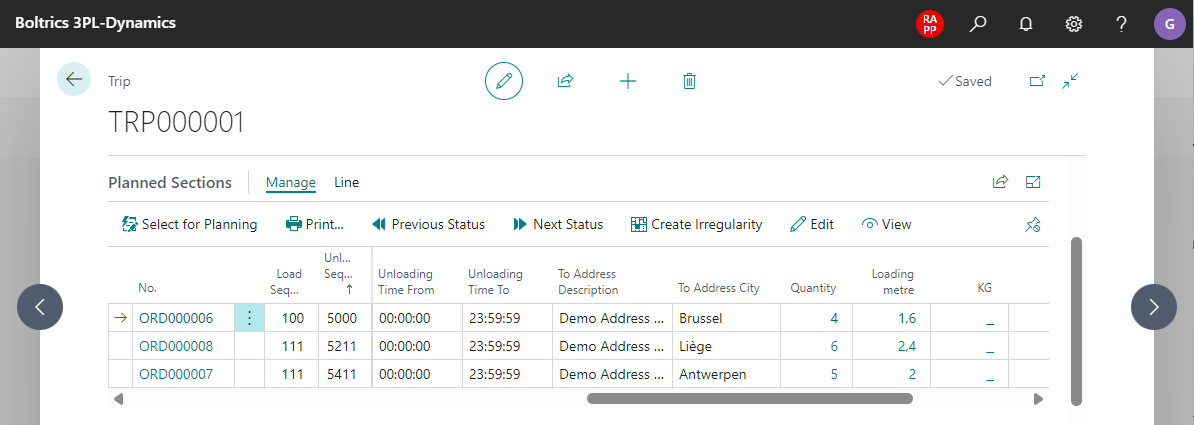
Functionality
Actions
| Group | Action | Description |
|---|---|---|
| Manage | Select for planning | Selects the current line. |
| Manage | Opens the page: Reports Selections with the reports that can be printed on a section. | |
| Manage | Previous Status | Changes the status of the selected section. |
| Manage | Next Status | Changes the status of the selected section. |
| Manage | Create Irregularity | Opens the page: Irregularity to enter e new Irregularity on the section. |
| Manage | Edit | Opens the page: section in the edit-modus. |
| Manage | View | Opens the page: section in the read-only-modus. |
| Line | Section | Opens the page: section |
| Line | Deassign Plan Section | Removes the selected section from the trip so it can be replanned. |
| Line | Split Plan Section | Opens the page: Address List so a Depot Address can be selected to add a new section. |
| Line | Order details | Opens the page: Order in edit-modus. |
| Line | All Orders | Opens a listpage with al the orders planned on the trip. |
| Line | Add Address | Adds an additional address/activity for additional activity like borders, waypoints, Ferries etc. to the section. |
| Line | Order Package Processing | Opens the page Packaging to registered packages loaded/unloaded on the section. |
Deassign a section that is already loaded or unloaded
When a section is only partly handled on a trip, you can still remove it so you can replan it on another trip. You don't have to set the status back first.
- Open the trip and go to the Planned Sections tab.
- Select the section, and then choose Deassign Plan Section.
- If the section has a status of type Loaded, a message asks whether you're sure you want to deassign a section that is already loaded. If the section has a status of type Unloaded, the message says the section is already unloaded. Choose Yes to continue.
If you choose No, nothing changes and the section stays on the trip. If you choose Yes, the section is removed from the trip, its activity links are cleaned up, and the section returns to the Released status so you can plan it again. Planned activities that no other section on the trip uses are deleted.
The same confirmation appears when you deassign a section from the Sections tab on the trip. For sections that aren't loaded or unloaded, deassigning works as before, without an extra confirmation.
Fields
| Field | Description |
|---|---|
| No. | The ordernumber of the section. |
| Load Sequence | The loading sequence of the section on the trip. |
| Unload Sequence | The unloading sequence of the section on the trip. |
| Status | The actual status of the section |
| Loading Date From | The date on which the section is available to collect. |
| Loading Date To | The date on which the section has to be collected at the latest. |
| Loading Time From | The time on which the section is available to collect. |
| Loading Time To | The time on which the section has to be collected at the latest. |
| From Address Description | The descripton of the from-address of the section. |
| From Address City | The city of the from-address of the section. |
| Unloading Date From | The date on which the section may be delivered. |
| Unloading Date To | The date on which the section has to be delivered at the latest. |
| Unloading Time From | The time on which the section may be delivered. |
| Unloading Time To | The time on which the section has to be delivered at the latest. |
| To Address Description | The descripton of the to-address of the section. |
| To Address City | The city of the to-address of the section. |
| Load Mtr | The sum of the 4th planning unit field of the section. |
| Kilogram | The sum of the 3rd planning unit field of the section. |
| Euro | The sum of the 1rd planning unit field of the section. |
| Blok | The sum of the 2nd planning unit field of the section. |