Transport Planning Worksheet
General
The transport planning worksheet is designed to simplify the creation and management of Trips in 3PL Dynamics. Based on Sections containing a Plandepartment and Planbox, Trips can be suggested, modified and finally created automatically.
Functionality
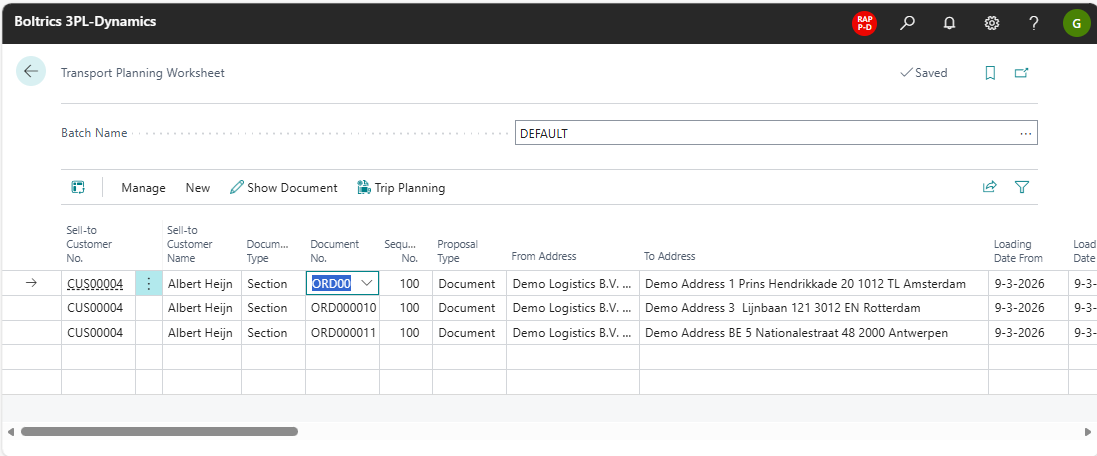
Actions
Manage.: Opens the menu: ManageDelete: Deletes the selected line.
New: Opens the menu: NewAdd Sections: Opens een selectionpage on which filters can be set to select a specific set of Sections.
Show Document: Opens the page: Section of the selected line.Trip Planing: A trip-line will be added at the to of the rows and all section-lines will be linked to this unassigned line.
Note
If sections have been assigned to Trips additional actions will be revealed. See Step 5. Assign Sections to Trips.
Fields
Batch Name: Create Multiple Batches, if users need to use the Transport Worksheet Functionality simultaneously.Sell-to Customer No.: The number of the Customer on the Section.Sell-to Customer Name: The name of the Customer on the Section.Document TypeThe Document Type of the line, normally Section.Document No.The Order Number related to the Section.Sequence No.: The Sequence Number of the Order related to the Section.Proposal Type: Fixed value: DocumentFrom Address: The From Address of the Section.To Address: The To Address of the Section.Loading Date From: The Loading Date From of the Section.Loading Date To: The Loading Date To of the Section.Loading Time From: The Loading Time From of the Section.Loading Time To: The Loading Time To of the Section.Unloading Date From: The Unloading Date From of the Section.Unloading Date To: The Unloading Date To of the Section.Unloading Time From: The Unloading Time From of the Section.Unloading Time To: The Unloading Time To of the Section.External Document No.: The External Document No. of the Section.Customer Reference.: The Customer Reference of the Section.Loading Reference.: The Loading Reference of the Section.Unloading Reference.: The Unloading Reference of the Section.Document Date: The Document Date of the Section.Order Type Code: The Order Type Code of the Section.From Opening Time: The Opening Time as set on the From Address, Tab: Time Slot of the Section.From Closing Time: The Closing Time as set on the From Address, Tab: Time Slot of the Section.To Opening Time: The Opening Time To as set on the To Address, Tab: Time Slot of the Section.To Closing Time: The Closing Time To as set on the To Address Tab: Time Slot of the Section.Agreed Loading Date: The Loading Date as set in the Time Slot in on the Order.Agreed Loading Time From: The Loading Time From as set in the Time Slot in on the Order.Agreed Loading Time To: The Loading Time To as set in the Time Slot in on the Order.Agreed Unloading Date: The Unloading Date as set in the Time Slot in on the Order.Agreed Unloading Time From: The Unloading Time From as set in the Time Slot in on the Order.Agreed Unloading Time To: The Unloading Time To as set in the Time Slot in on the Order.Plan Box No.: The Plan Box No. as set on the Section.Incoterms Code: The Incoterms as set on the Order.Incoterms City: The City applicable to the Incoterms as set on the Order.Load Sequence: The Load Sequence of the Section when assigned to a Trip. The value will be determined when clicking on the action: Suggest Stop Sequence.Unload Sequence: The Unload Sequence of the Section when assigned to a Trip. Will be determined when clicking on the action: Suggest Stop Sequence.Payable Weight: The total Payable weigh of the lines related to the Section. or Trip.KG: The total of UOM1 as set in the Transport Setup of the lines related to the Section. or Trip.KG: The total of UOM1 as set in the Transport Setup of the lines related to the Section. or Trip.Load Meter: The total of UOM2 as set in the Transport Setup of the lines related to the Section. or Trip.Euro Pallet: The total of UOM3 as set in the Transport Setup of the lines related to the Section. or Trip.UOM4: The total of UOM4 as set in the Transport Setup of the lines related to the Section. or TripUOM5: The total of UOM5 as set in the Transport Setup of the lines related to the Section. or TripUOM6: The total of UOM6 as set in the Transport Setup of the lines related to the Section. or TripCarrier No.: The Carrier as applicable on the Trip suggested.
Example Transport Planning Worksheet
Step 1. Orders
To explain the functionality of the Transport Planning Worksheet he following Orders have been created.
| Order No. | Customer | Loading date | Loading Address | Unloading Date | Unloading Address | Plan Dep. | Planbox | Loadmeters |
|---|---|---|---|---|---|---|---|---|
| ORD000009 | Albert Hein | 09-03-2026 | Demo Logistics | 09-03-2026 | Demo Address 1 - NL | Transport | NL | 7 |
| ORD000010 | Albert Hein | 09-03-2026 | Demo Logistics | 09-03-2026 | Demo Address 3 - NL | Transport | NL | 6 |
| ORD000011 | Albert Hein | 09-03-2026 | Demo Logistics | 09-03-2026 | Demo Address 5 - BE | Transport | BE | 8 |
Step 2. Sections
When releasing the Orders for each Order a Section is being created automatically.
Step 3. Transport Planning Worksheet, select sections.
- Open the page: *Transport Planning Worksheet.
- Change the Batch Name if multiple users are using the Transport Planning Worksheet functionality simultaneously.
- Click on New > Add Sections
- Apply filters in the following selection-page and confirm by clicking on the button: OK
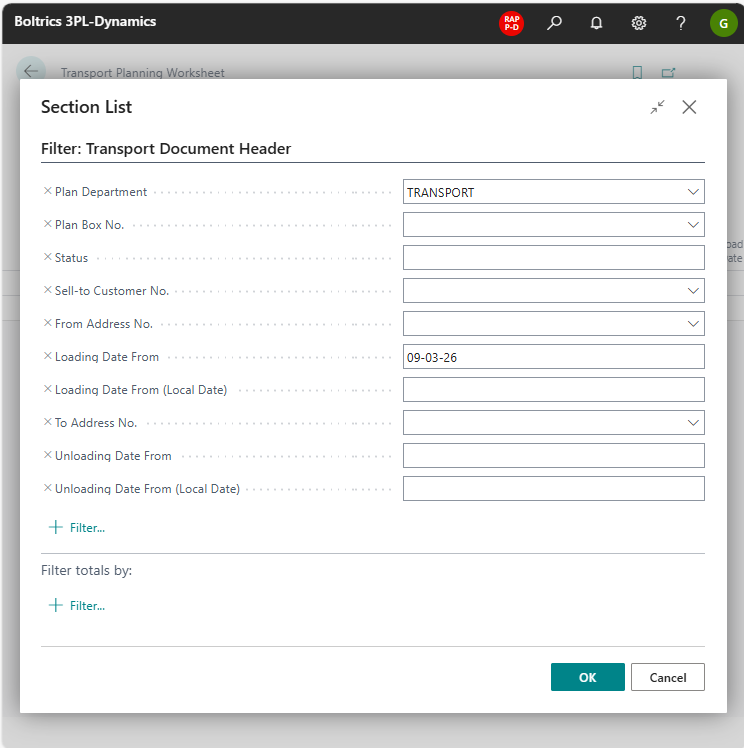
Step 4. Unplanned sections
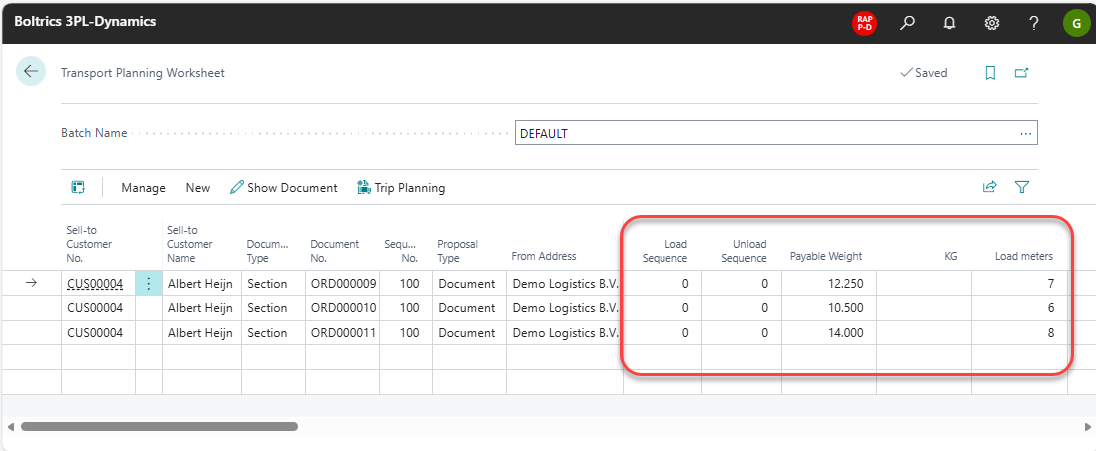
Based on the filter the Unplanned Sections will be shown. The Columns: Load- and Unload Sequence will be showing the value 0. The Columns UOM1 up to 6 will show the total of Unit of Measure as registered on the Order/Section. See the follwing screenshot:
Step 5. Assign Sections to Trips
- Click on the action: Trip Planning.
A new row: Unassigned is added at the top of the rows and all section-lines are linked to this unassigned line.
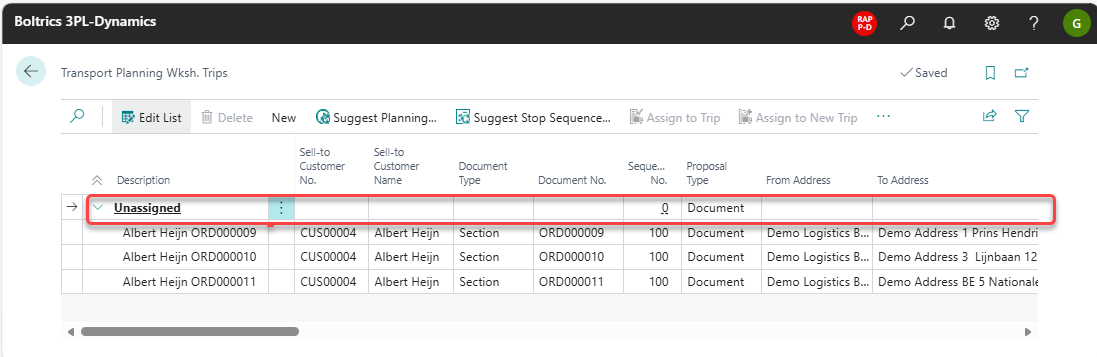
Actions
Edit List: Changes to edit-modus.New: Opens the menu: NewAdd Sections: Opens een selectionpage on which filters can be set to select additional Sections.
Suggest Planning: Before clicking on this button first a line has to be selected. Select one of the options:Suggest Stop Sequence: Will apply the stop sequence based on the option selected. Select on e the Options:- Option Default: Plan Load/Unload Sequence by Post Code
- Option Reverse: Plan Load/unload Sequence by Post Code (reverse)
- Option Unload DT per trip: Plan trip Load/Unload Sequence by Unloading Date Time
- Option Unload DT all trips: Plan all trips Load/Unload Sequence by Unloading Date Time)
Assing to Trip: The selected Section-line can be assigned to an other Trip.Assign to New Trip: The selected Section-line will be assigned to a new Trip.
Step 6. Edit proposal
- Click on a line containing a Section
- Click on the action: Suggest Planning
- Select the option: Plan Box as we want the Trips to be made per Planbox
- Confirm by clicking on the button: OK
The following result will be shown in the page:
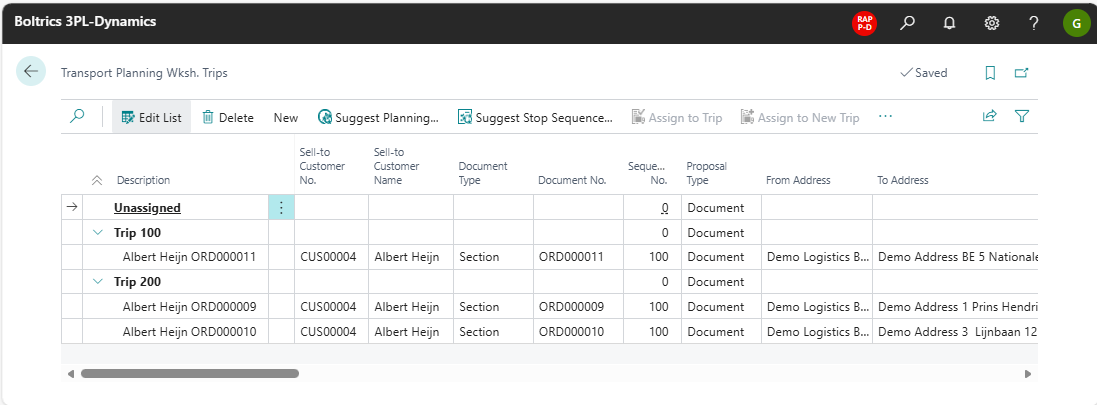
Trip: 100 contains the Section based on the Planbox: BE. Order ORD00011 Trip: 200 contains the Sections based on the Planbox: NL. Order ORD00009 and ORD00010
![Note] The system will not take into account the planningquantities or routing on a Trip. Users can edit the proposed assignments by using the actions: New Trip or Assign to Trip.
Step 7. Suggest Stop Sequence
Before creating Trips the sequence on loading and unloading must be determined.
- Select a Section-Line which has been assigned to a Trip-group.
- Click on the action: Suggest Stop Sequence to determinate the stop sequence. Select one the following options.
- Default, plan Load/Unload Sequence by Post Code
- Reverse, plan Load/Unload Sequence by Post Code (reverse)
- Unload DT per trip, plan trip Load/Unload Sequence by Unloading Date Time
- Unload DT all trips, Plan all trips Load/Unload Sequence by Unloading Date Time
- Consult the columns: Load- and Unloading Sequence and check that the values have been changed.
- If required users can change to Edit-modus and manually change the values in the load- and unload sequence.
Step 8. Create Trips
Once the Sections have been assigned to a Trip a Trip can be created.