Boltrics Market Place Demo Data - TMS Contract Strategy
General
By installing the Boltrics Market Place app: TMS Contract Strategy (Demo Data) a set of records will be imported into the 3PL Dynamics company.
Note
Installing Boltrics Marketplace APPS may result in existing configurations/data being unintentionally overwritten. To prevent this, most Boltrics Marketplace APPS are only available in an implementation environment. To access all Boltrics Marketplace APPS in a production environment, it is recommended to install them in a new company. In this company, on the page: 3PL Environment Settings, the field: Implementation Mode must be set to True. By using the functionality: 3PL Data Package Wizard or Configuration Packages, the configuration can then be transferred to the desired company.
Functionality
The app contains the following Contract Strategies and Contracts:
| Contract Strategy No. | Customer No. | Contract No. | Description |
|---|---|---|---|
| TCS0001 | CUS00001 | TC000005 TC000007 TC000001 TC000002 TC000003 TC000004 |
Dedicate / Milk Run Trips containing rates per kilometer based on Truck or HGV Surcharges on orders containing ADR, Tail Lift, UL Strick, UL UPTO 09 and Weekend Transport rates on orders NL - BE containing 2 regions Belgium North and South based on Postcodes. Including the Brussels Toll Surcharge Transport rates on orders NL - NL containing 10 (regions based on the postcodes Transport rates on orders NL - LU containing 1 region based on Country Code Transport rates on orders NL - DE containing 3 region based on Postcodes. Including the German Maut |
| TCS0002 | CUS00002 | TC000006 | Transport rates on linked orders NL - NL based on FTL (linked orders) and LTL (normal orders) |
Note
The following app must be installed before installing the app: TMS Contract Strategy (Demo Data).
Best Practice Examples
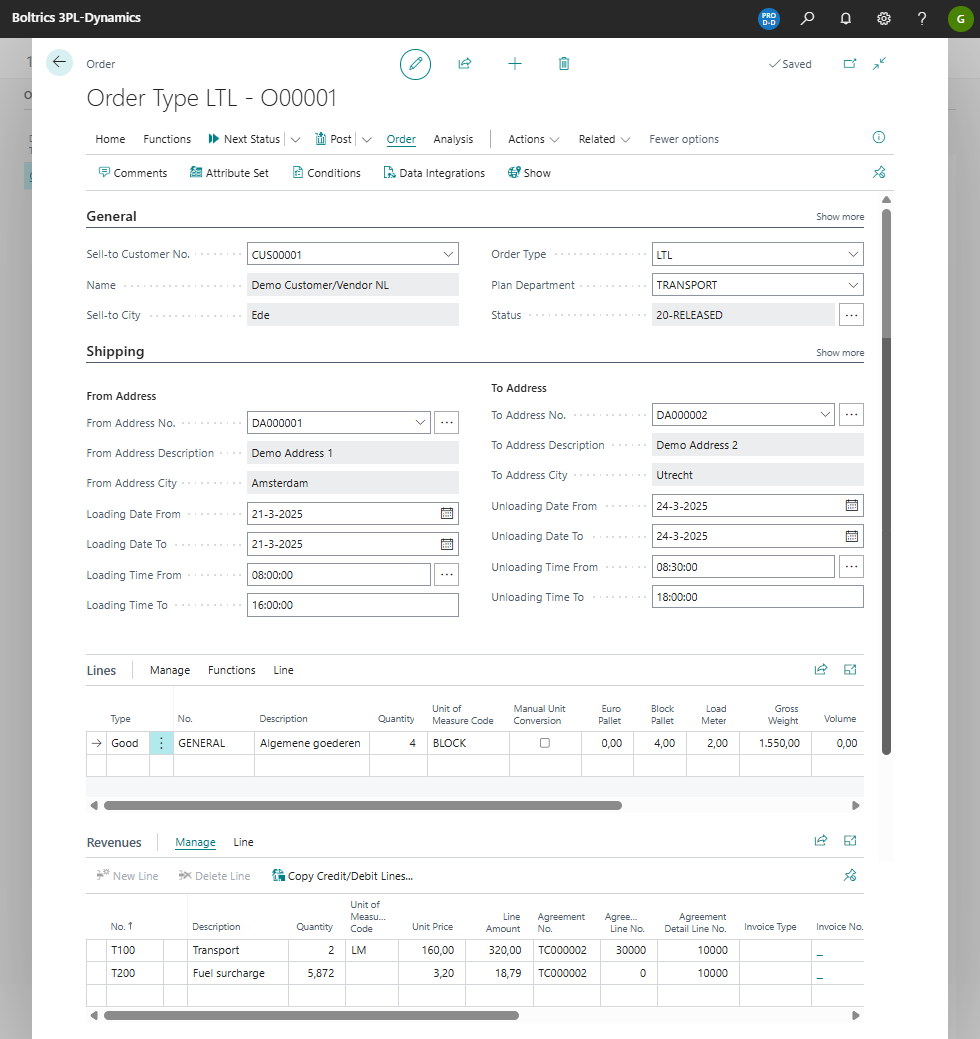
General order and revenue
When creating an order with the data as shown in the example automatically revenues will be created when changing the orderstatus to 15-CALCULATE
Note
If no revenues appear on the revenue check the following:
- Open the page: Transport Setup Tab: General and check the value in field: Contract Price Search Date.
- Open the page: Transport Setup Tab: Contract Strategy and check the value in the field: Contract Strategy Logging. If set to: Enabled open the log on the order by clicking on: Order>Related>Order>Contract Strategy Log.
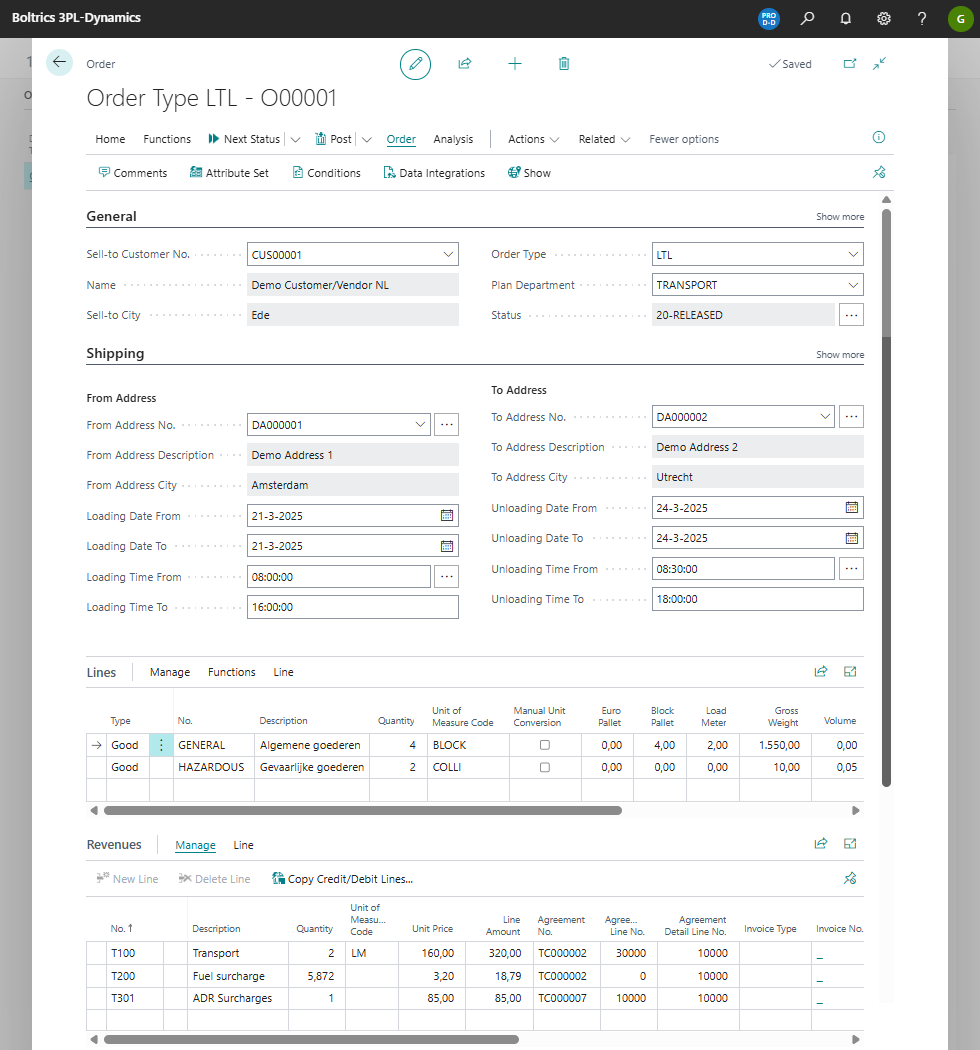
Order with condition ADR: Yes
When creating an order with the data as shown in the example automatically revenues including an ADR Surcharge will be created when changing the orderstatus to 15-CALCULATE
Note
If no revenues appear on the revenue check the following:
- Open the page: Transport Setup Tab: General and check the value in field: Contract Price Search Date.
- Open the page: Transport Setup Tab: Contract Strategy and check the value in the field: Contract Strategy Logging. If set to: Enabled open the log on the order by clicking on: Order>Related>Order>Contract Strategy Log.
- Click on the Action: Order > Conditions and check if the condition ADR is set to: Yes
- Open the Status Template of the TMS_ORDER > 15-CALCULATE and check if the line with the condition function set: ADR contains the value: Yes.
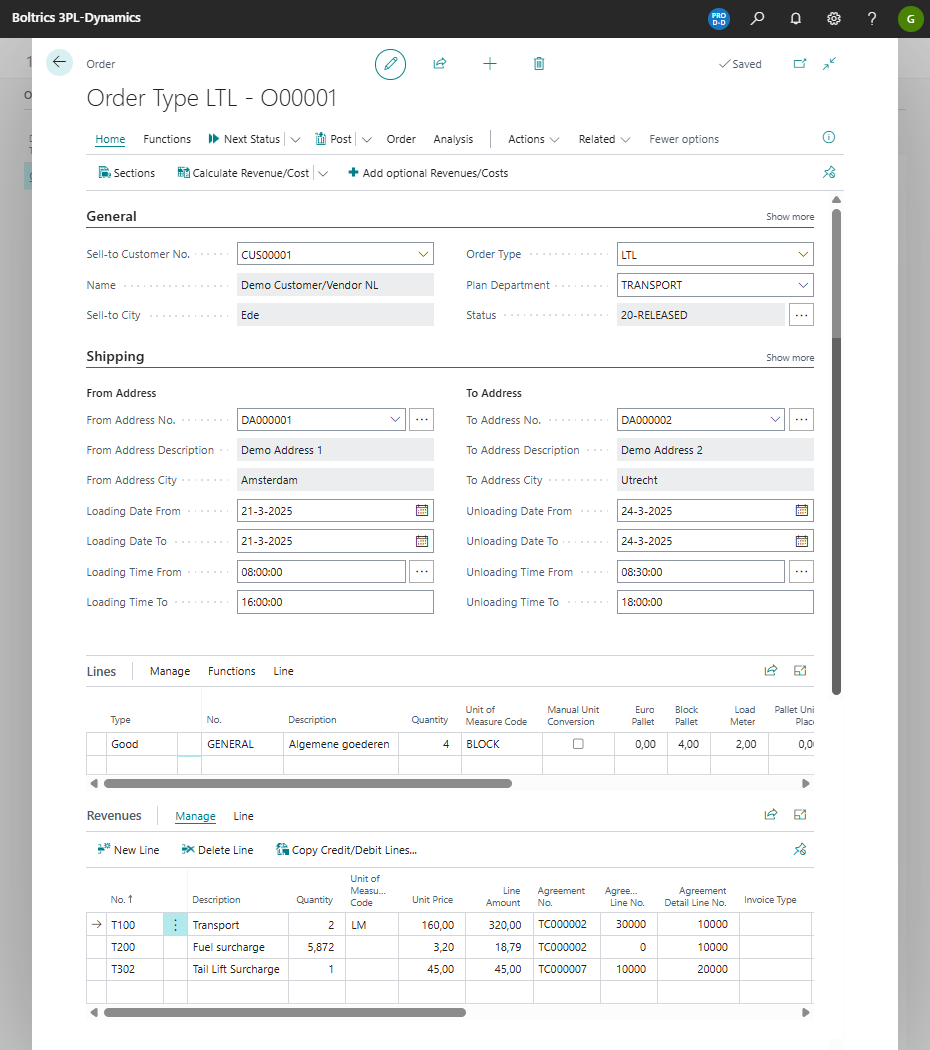
Order with condition Tail Lift: Yes
Before creating an order with the data as shown in the example first add the condition Taillift to From Address or To Address so automatically revenues, including a Tail Lift Surcharge, will be created when changing the orderstatus to 15-CALCULATE
Note
If no revenues appear on the revenue check the following:
- Open the page: Transport Setup Tab: General and check the value in field: Contract Price Search Date.
- Open the page: Transport Setup Tab: Contract Strategy and check the value in the field: Contract Strategy Logging. If set to: Enabled open the log on the order by clicking on: Order>Related>Order>Contract Strategy Log.
- Click on the lookup in the field: From Address No. and Show Details to open the card. Click on the action: Home>Conditions and check if the Conditon Taillift is set to: Yes.
- Click on the lookup in the field: To Address No. and Show Details to open the card. Click on the action: Home>Conditions and check if the Conditon Taillift is set to: Yes.
- Click on the Action: Order > Conditions and check if the condition: Tail Lift is set to: Yes
- Open the Status Template of the TMS_ORDER > 15-CALCULATE and check if the line with the condition function set: Tail Lift contains the value: Yes.
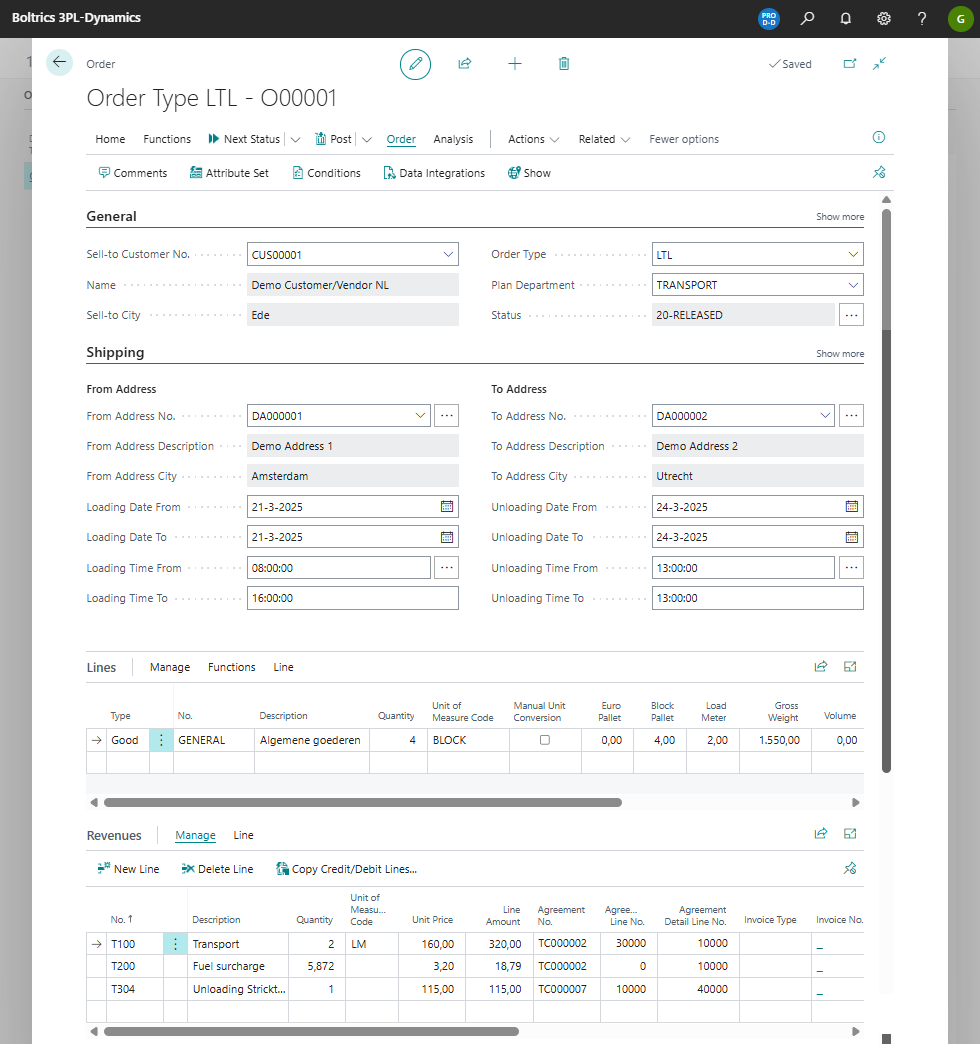
Order with condition UL STRICK: Yes
When creating an order with the data as shown in the example automatically revenues, including an Unloading Strict Surcharge will be created when changing the orderstatus to 15-CALCULATE
Note
If no revenues appear on the revenue check the following:
- Open the page: Transport Setup Tab: General and check the value in field: Contract Price Search Date.
- Open the page: Transport Setup Tab: Contract Strategy and check the value in the field: Contract Strategy Logging. If set to: Enabled open the log on the order by clicking on: Order>Related>Order>Contract Strategy Log.
- Check that the duration of the unloading window is less then 15 minutes.
- Click on the Action: Order > Conditions and check if the condition UL Strick is set to: Yes
- Open the Status Template of the TMS_ORDER > 15-CALCULATE and check if the line with the condition function set: UL Strict contains the value: Yes.
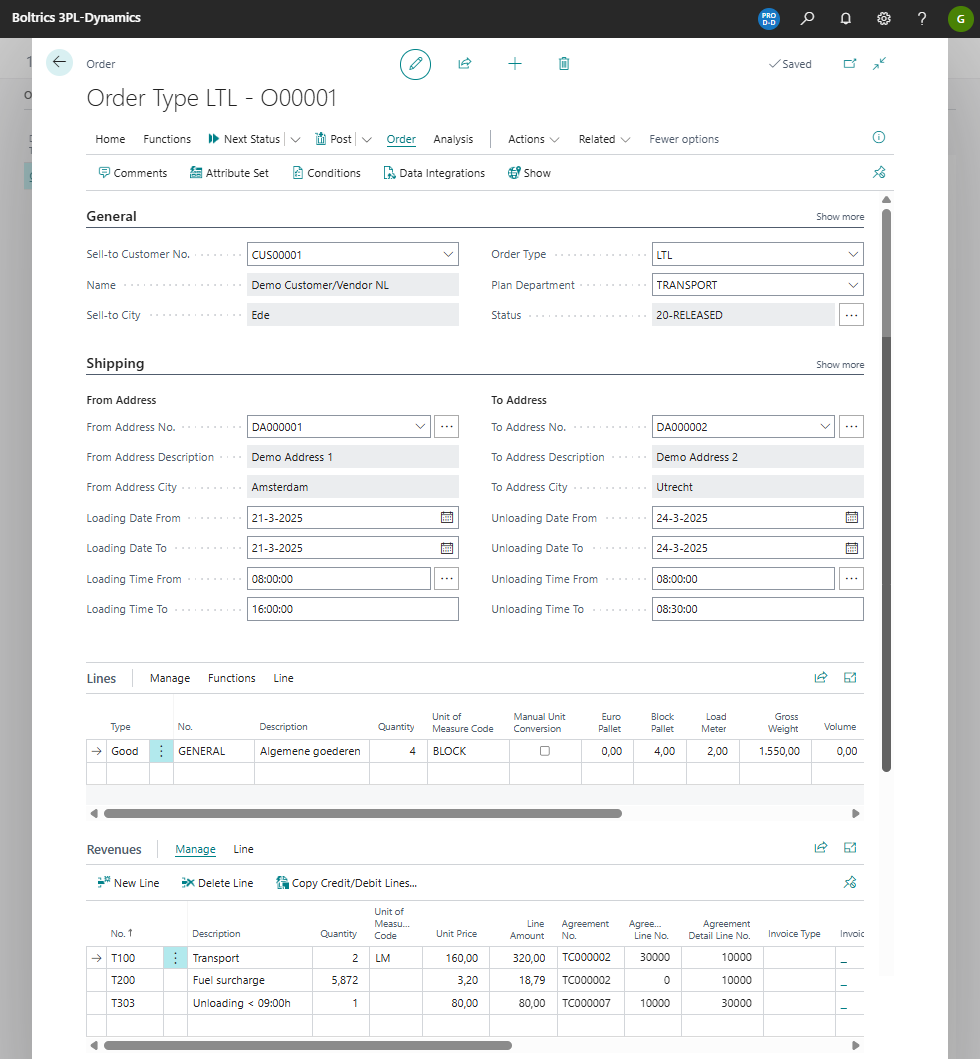
Order with condition UL UPTO 09: Yes
When creating an order with the data as shown in the example automatically revenues, including an unloading before 09:00 surcharge will be created when changing the orderstatus to 15-CALCULATE
Note
If no revenues appear on the revenue check the following:
- Open the page: Transport Setup Tab: General and check the value in field: Contract Price Search Date.
- Open the page: Transport Setup Tab: Contract Strategy and check the value in the field: Contract Strategy Logging. If set to: Enabled open the log on the order by clicking on: Order>Related>Order>Contract Strategy Log.
- Check that the duration of the field: Unloading Time To unloading* contains a value before 09:00 AM.
- Click on the Action: Order > Conditions and check if the condition UL UPTO 09 is set to: Yes
- Open the Status Template of the TMS_ORDER > 15-CALCULATE and check if the line with the condition function set: UL UPTO 09 contains the value: Yes.
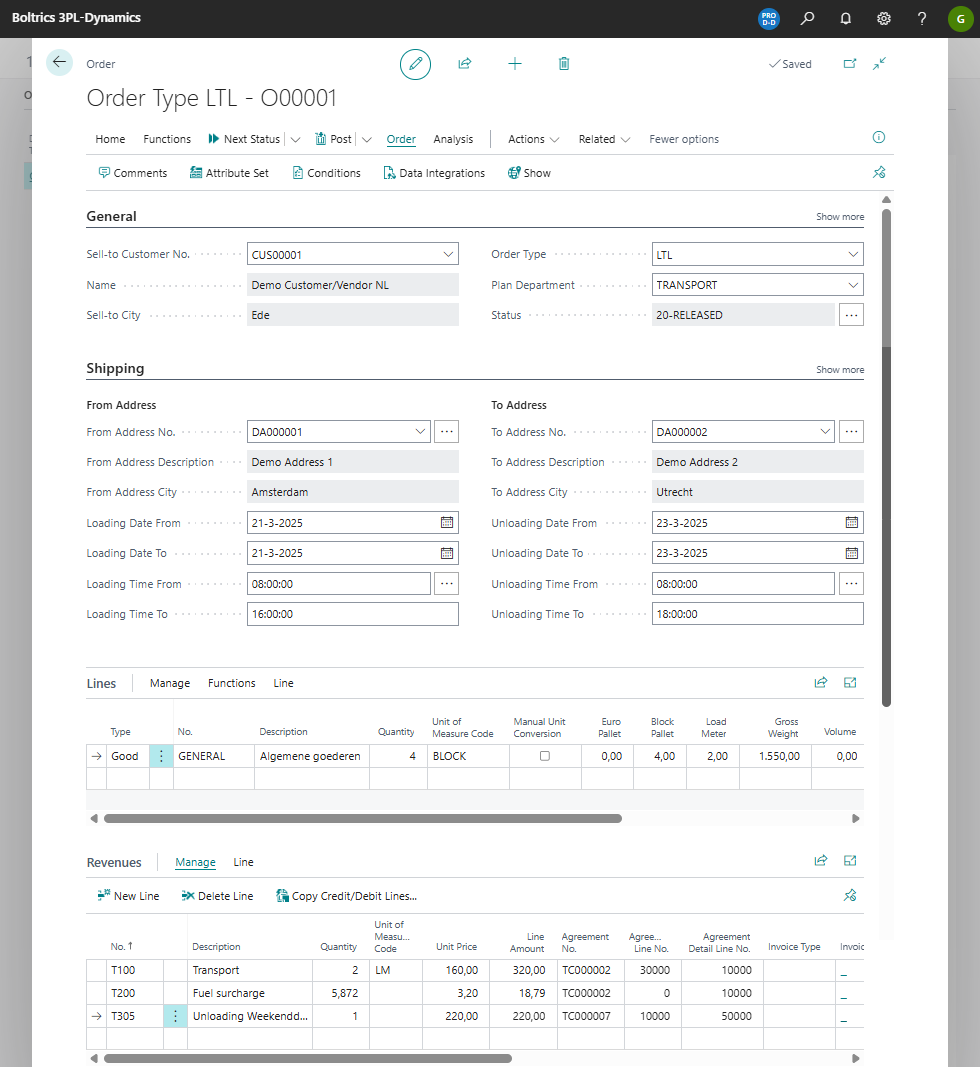
Order unloading weekend
When creating an order with the data as shown in the example automatically revenues, including an surcharge for unloading in the weekend will be created when changing the orderstatus to 15-CALCULATE
Note
If no revenues appear on the revenue check the following:
- Open the page: Transport Setup Tab: General and check the value in field: Contract Price Search Date.
- Open the page: Transport Setup Tab: Contract Strategy and check the value in the field: Contract Strategy Logging. If set to: Enabled open the log on the order by clicking on: Order>Related>Order>Contract Strategy Log.
- Check that the the fields: Unloading Date From contains a value which is a Saturday or a Sunday.
- Open the Status Template of the TMS_ORDER > 15-CALCULATE and check if the line with the condition function set: UL UPTO 09 contains the value: Yes.