Document reporting
The term document reports is used for all output that's generated from a TMS document, such as a trip, order, or section. Document reports let you preview, print, e-mail, or save the right documents for the right situation without needing a separate report action per scenario.
Examples of document reports available out of the box in TMS:
- CMR
- Driver Instruction
- Order Confirmation
- Outsourcing trips
- TMS Sales Invoice
- TMS Invoice Specification
Document reporting in TMS reuses the generic 3PL Dynamics Document Reporting engine. This page explains how it applies to TMS; for the full configuration procedures (templates, categories, report definitions, and layouts), see Document Reporting.
Open documents from a trip, order, section, or damage
You can open the available document reports directly from the record they belong to.
- Open a Trip, Order, Section, or a Vehicle Damage or Cargo Damage.
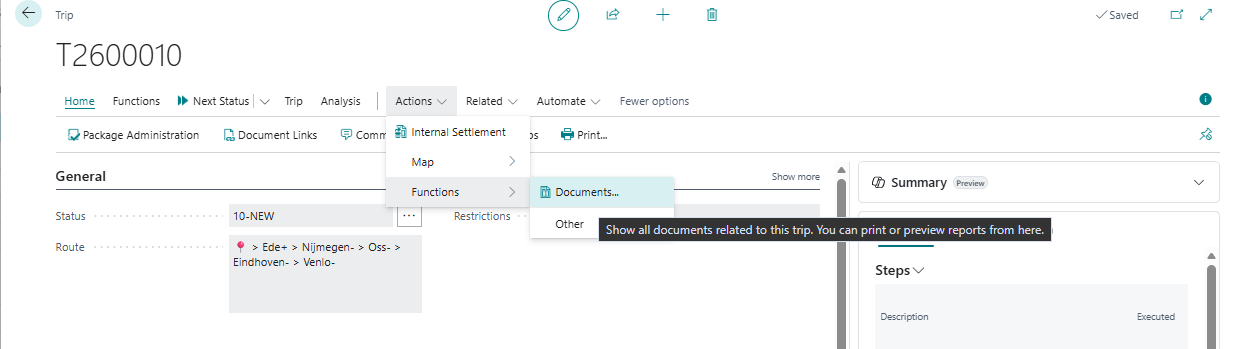
- On the Actions tab, choose Functions, and then choose Documents.
- On the Documents page, select a document and choose Preview, Print, E-mail, or Save Report as Record Link.
Note
The Documents action shows every document report configured for that record's table. See Using Document Reports for a full explanation of the Preview, Print, E-mail, Save Report as Record Link, Upload File, and Advanced Mode actions on that page.
Configure which documents are available
Unlike Forwarding, TMS documents don't have an Order type field to attach a template to. Instead, you link a Document Report Template to a table using Document Report Setup.
- Choose the
 icon, enter Document Report Table Setup, and then choose the related link.
 - Choose New.
- In the Table No. field, select the table you want to configure document reports for, for example the table used for Trips, Orders, and Sections, or the table used for Damages.
- In the Template Code field, select the template that contains the document reports for this table.
You can link one template per table this way. If different records of the same table need different documents, for example per Order Type or Customer, use a document report template strategy instead, as described in the next section.
See Configuring Document Reports for how to build the template itself and add individual document reports, categories, and layouts to it.
Choose a template per situation with a document report template strategy
A document report template strategy decides which Document Report Template applies to a specific record, based on the record's own values. Use it when, for example, orders for one customer need a different set of documents than other orders, or when a new set of documents takes effect from a certain date.
When you open Documents on a trip, order, section, or damage, 3PL Dynamics determines the template as follows:
- It checks the template strategies set up for the record's table. A strategy is skipped if its Table Filter doesn't match the record.
- Within a matching strategy, it checks the lines in order of Priority, starting with the lowest number. A line is skipped if the work date is outside its Valid From Date and Valid To Date, if its Table Filter doesn't match the record, or if its Criteria Function Set doesn't return true.
- The first line that matches provides the template, and its document reports are shown on the Documents page.
- If no strategy line matches, the template from Document Report Table Setup is used.
The template is determined again every time you open Documents. If a record's values change so that a different template applies, document reports from the previous template are replaced, except for reports that you already saved as a record link.
To set up a strategy:
- Choose the icon, enter Document Report Template Strategies, and then choose the related link.
- Choose New, and then fill in a Code and Description.
- In the Table No. field, select the TMS table the strategy applies to. If needed, use the Table Filter field to limit the whole strategy to a subset of records.
- On the Lines FastTab, add a line for each situation. In the Template Code field, select the template to use, and use Priority, the validity dates, Table Filter, and Criteria Function Set to define when the line applies.
Tip
Give the most specific lines the lowest Priority number and add a general line without filters last. That way every record gets a template, and exceptions are handled first. For more information about criteria, see Function Set.
Tip
You don't need to open the Documents action for every record. A Status Template step can print all not-yet-printed output documents for a trip, order, or section automatically, for example when a trip is finished. Ask your implementation consultant about adding this step to the relevant Status Template if you want documents to print automatically instead of manually.