Visual Planning Time Line
General
The Time Line functionality shows the Trip window on the Visual Planning screen as a Gantt timeline.
Tip
Switch between the editable grid and the Time Line at any moment using the action: Switch to Timeline / Switch to List. The active filters will be applied in the selected view.
Functional
Adjusting window sizes
By hovering over the green lines that separate the windows of the Visual Planning screen, the size of the windows can be adjusted. The content of window 1 (Map) and window 3 (Visual Planning Timeline) will automatically be scaled.
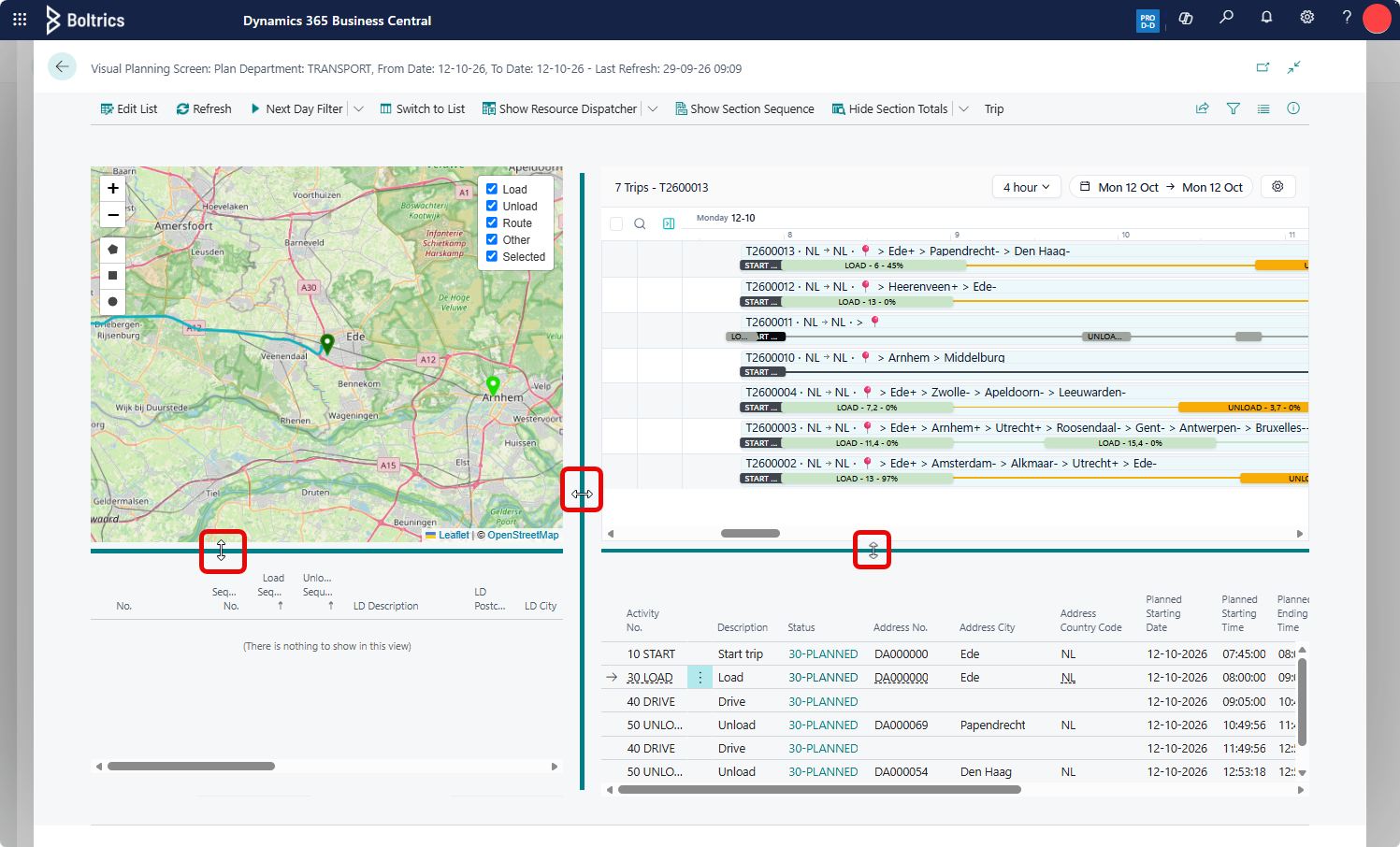
Timeline view
Each row in a window presents a Trip. In the sidebar, information is presented such as: trip number, resources, status, and utilisation. On the row, stops are shown. Based on the stop type and status, the colour of the stop will vary. Examples: stop type Loading, Unloading and status: not yet executed, late, in progress, ready, or in conflict. The information shown on the timeline can be configured; see Visual Planning Timeline Settings for more information.
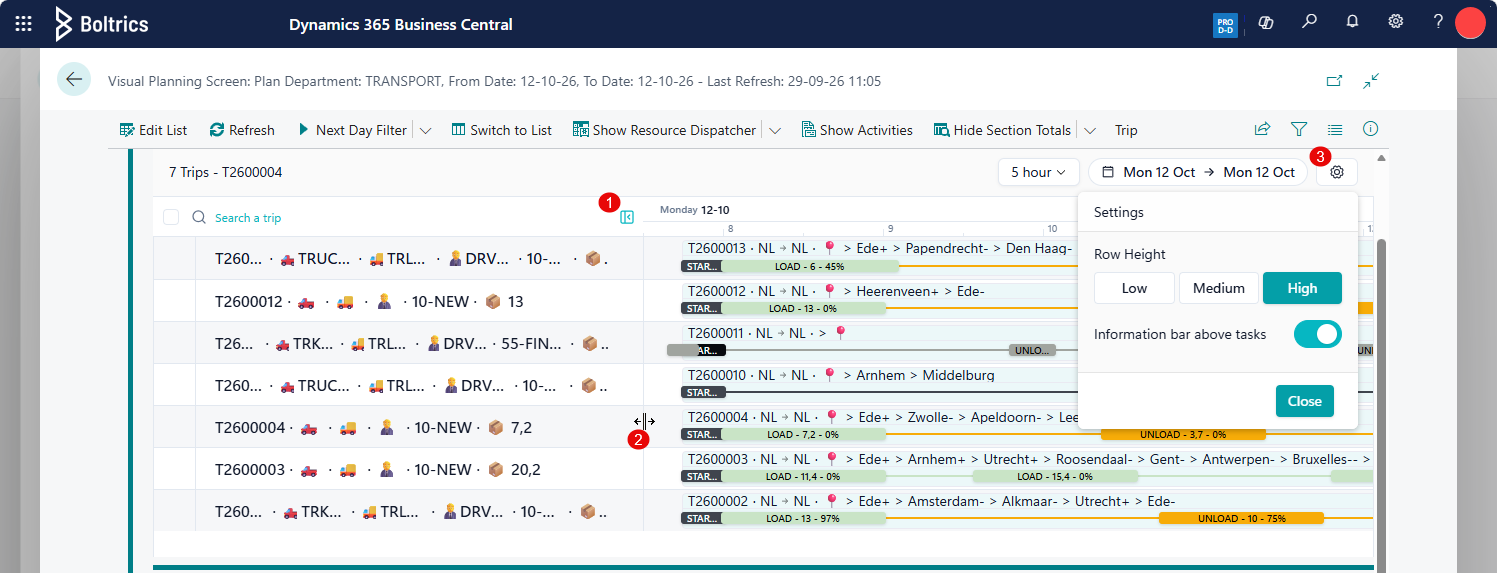
The following options can be used to adjust the view:
- Expand/Collapse: click the button to collapse the sidebar or expand it to its original size.
- Hover over the line, left mouse-click, and drag the line to a new position.
- Settings wheel: change the row height or hide/show the route text above the stops.
Tip
- To zoom in or out on the timeline, click: CTRL + use the scroll wheel on your mouse.
- To position the timeline forward or backward, click: SHIFT + use the scroll wheel on your mouse.
Stop details
By hovering over a stop, a window with details will appear. The detail window will present: trip number, stop number, stop type, time window, address, and section to load (+) or unload (-).
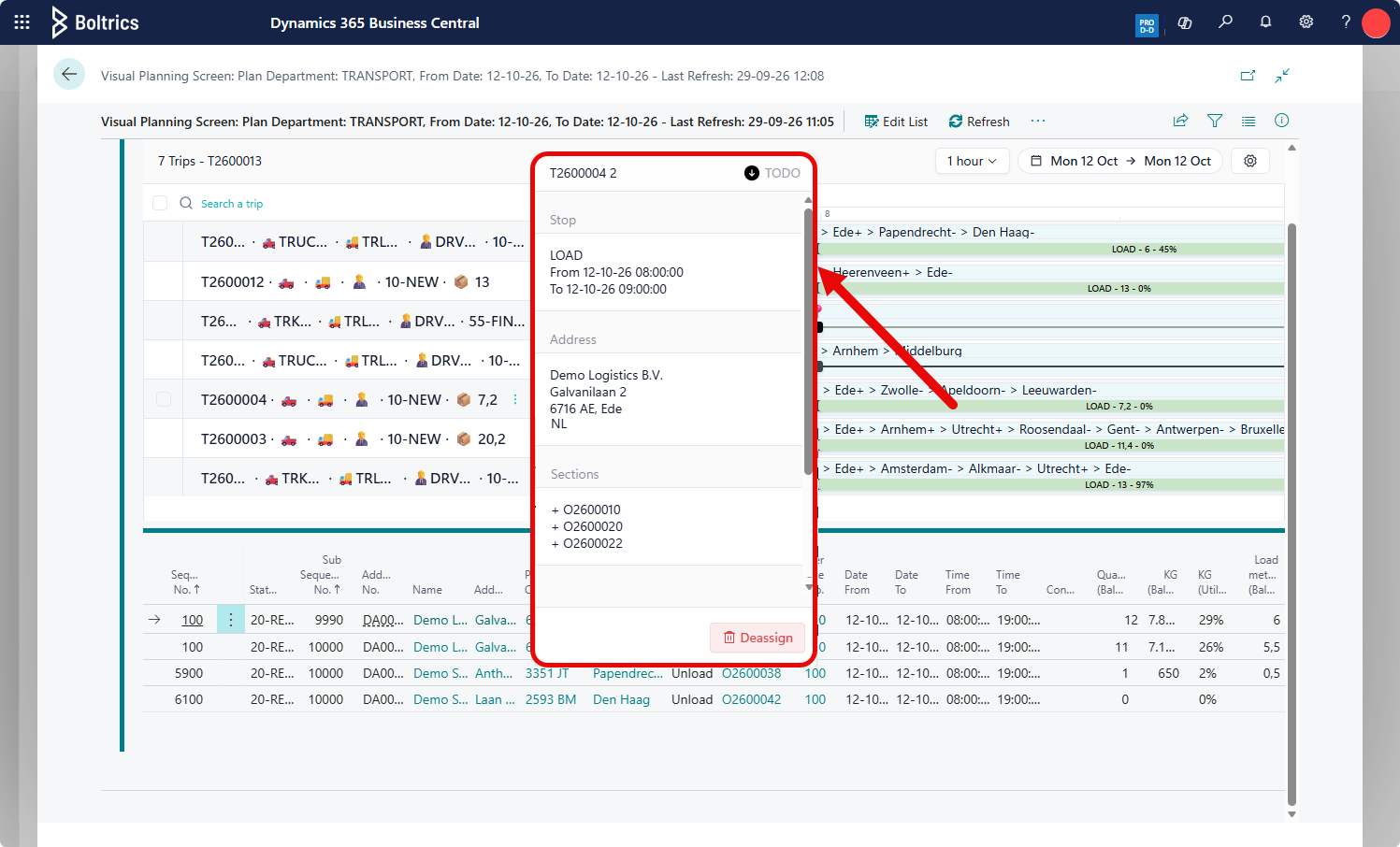
Functions on trip sidebar
Click in the sidebar at the end of the trip on  to open a menu with several functions.
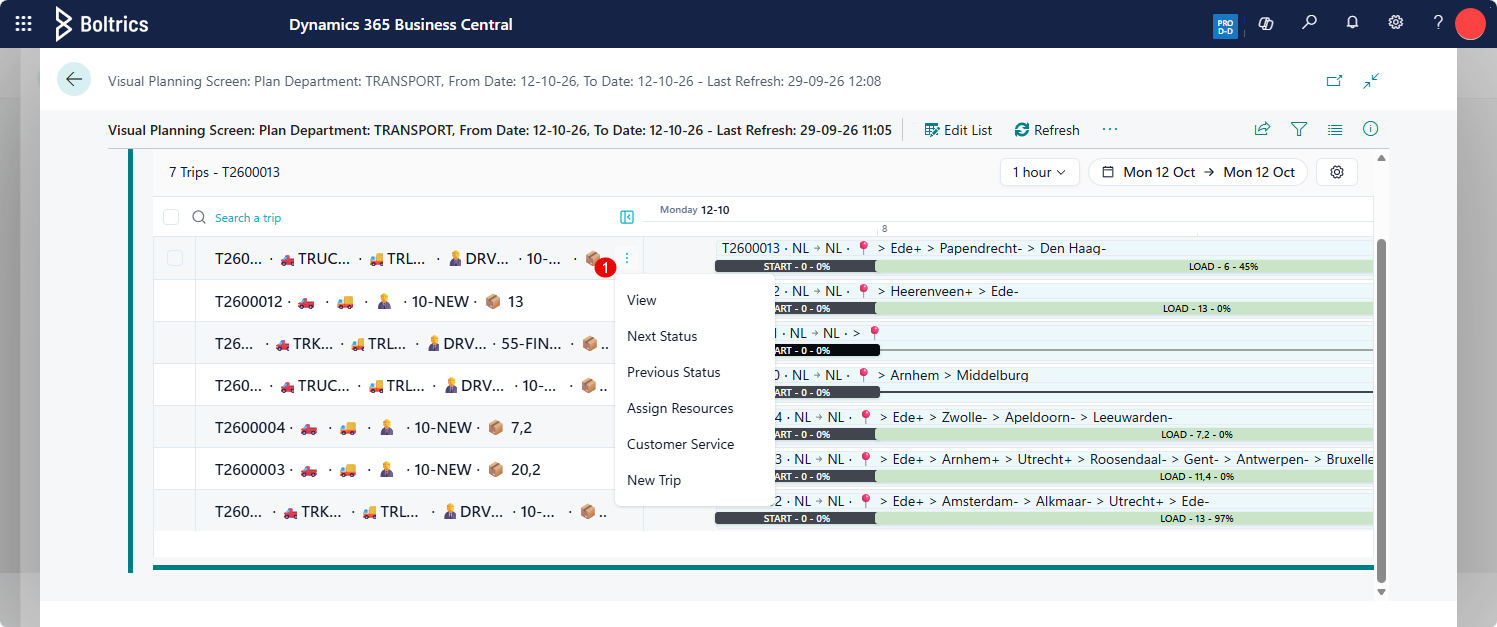
- View: open the page: Trip card
- Next Status: changes the status of the Trip to the next status.
- Previous Status: changes the status of the Trip to the previous status.
- Assign Resources: opens the page: Assign Resources
- Customer Service: opens the page: Customer Service.
- New Trip: creates a new Trip on the timeline.
Functions on multiple selected trips
When selecting multiple Trips, a status change can be performed on the selected trips, or resources can be added to the Trip.
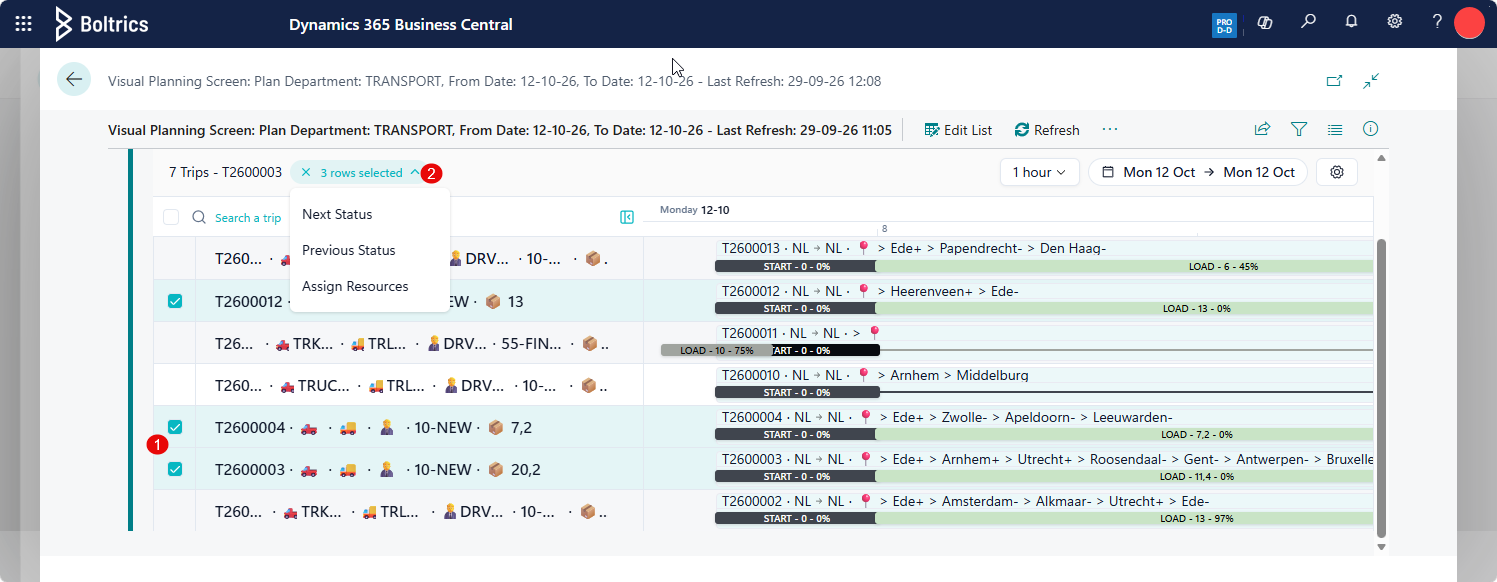
- Select the required trips/rows.
- Click the buttons showing the number of Trips selected and select the function.
Drag and drop unplanned sections
Users can drag a Selected Section onto the timeline of a Trip.
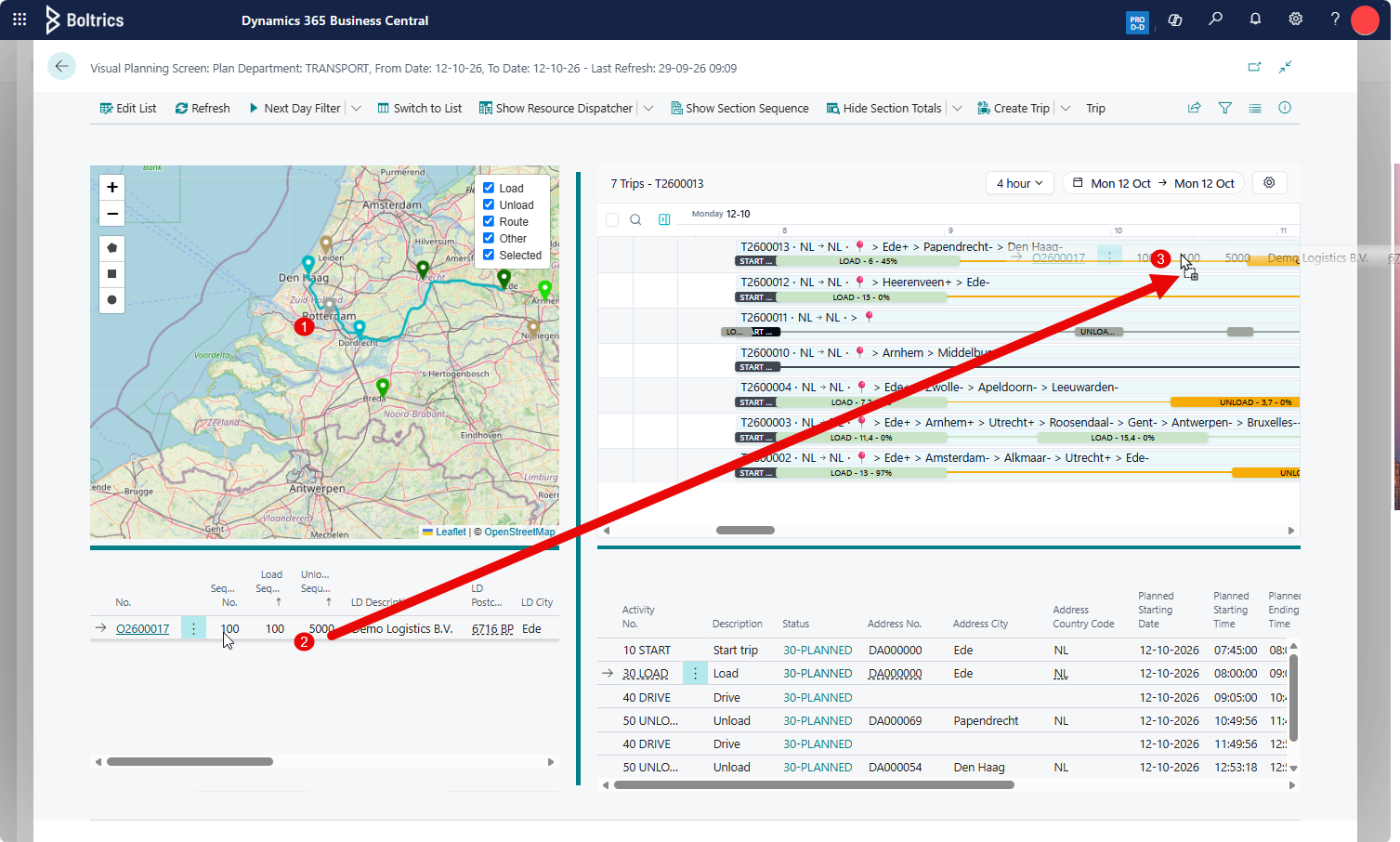
- Select a marker in the window: Visual Planning - Map or Visual Planning - Unplanned Sections so it is shown in the window: Visual Planning - Selected Sections.
- Left mouse-click on the line in the window: Visual Planning - Selected Sections.
- Hold the mouse button and drag the mouse to the desired position on a Trip timeline, then release the mouse button. The Section will automatically be placed in the selected position in the Trip. The planned date/time for the stop added to the Trip will be calculated, and the date/time for the subsequent stops will also be recalculated.
Note
- When dragging the Selected Section onto the Trip Timeline, the presentation of the mouse will change to indicate that the Selected Section can be dropped at the position of the mouse.
- When dragging the Selected Section onto a stop on the Trip Timeline, and the addresses match, the section will be added to the stop.
- You can also drag sections directly from the Unplanned Sections window, without selecting them for planning first. Select the check box of each section, and then drag one of the selected lines to the timeline. All selected sections are added to the Trip at the drop position.
- You can't add a section whose loading time type is Couple to a Trip that already contains sections.
Drag and drop stops
Users can drag a stop planned on the timeline of a Trip to a new position. Stops can also be moved from one Trip to another Trip.
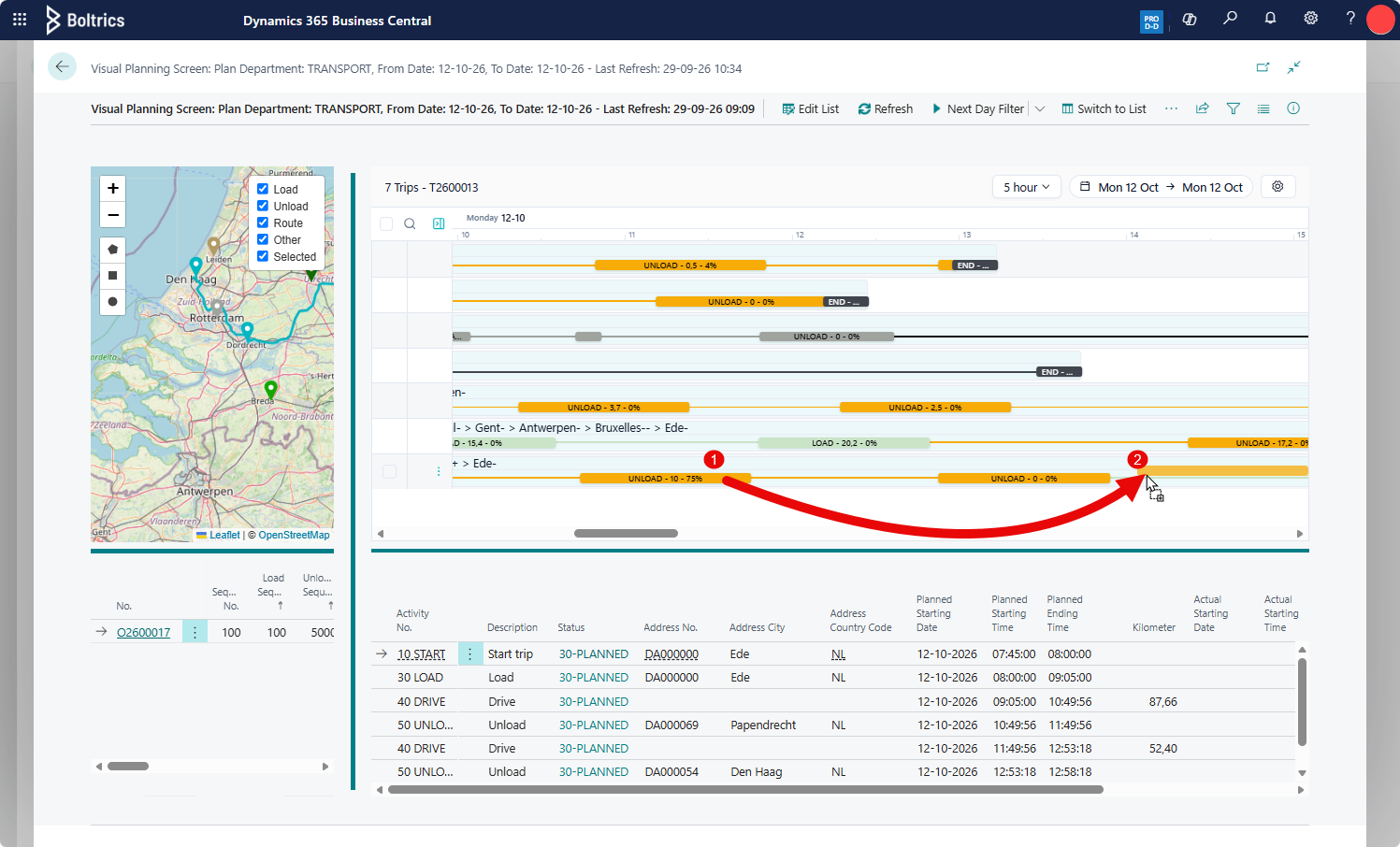
- Left mouse-click on a stop in the window: Visual Planning - Timeline.
- Hold the mouse button and drag the mouse to the desired position on the Trip timeline, then release the mouse button. The stop will automatically be placed in the new position in the Trip. The planned date/time for the stop added to the Trip will be calculated, and the date/time for the subsequent stops will also be recalculated.
Note
Stops can be moved to a new position as long as this does not conflict with the load/unload sequence of the section. Stops cannot be moved if a stop is executed.
Remove stops
Users can de-assign stops from the timeline of a Trip.
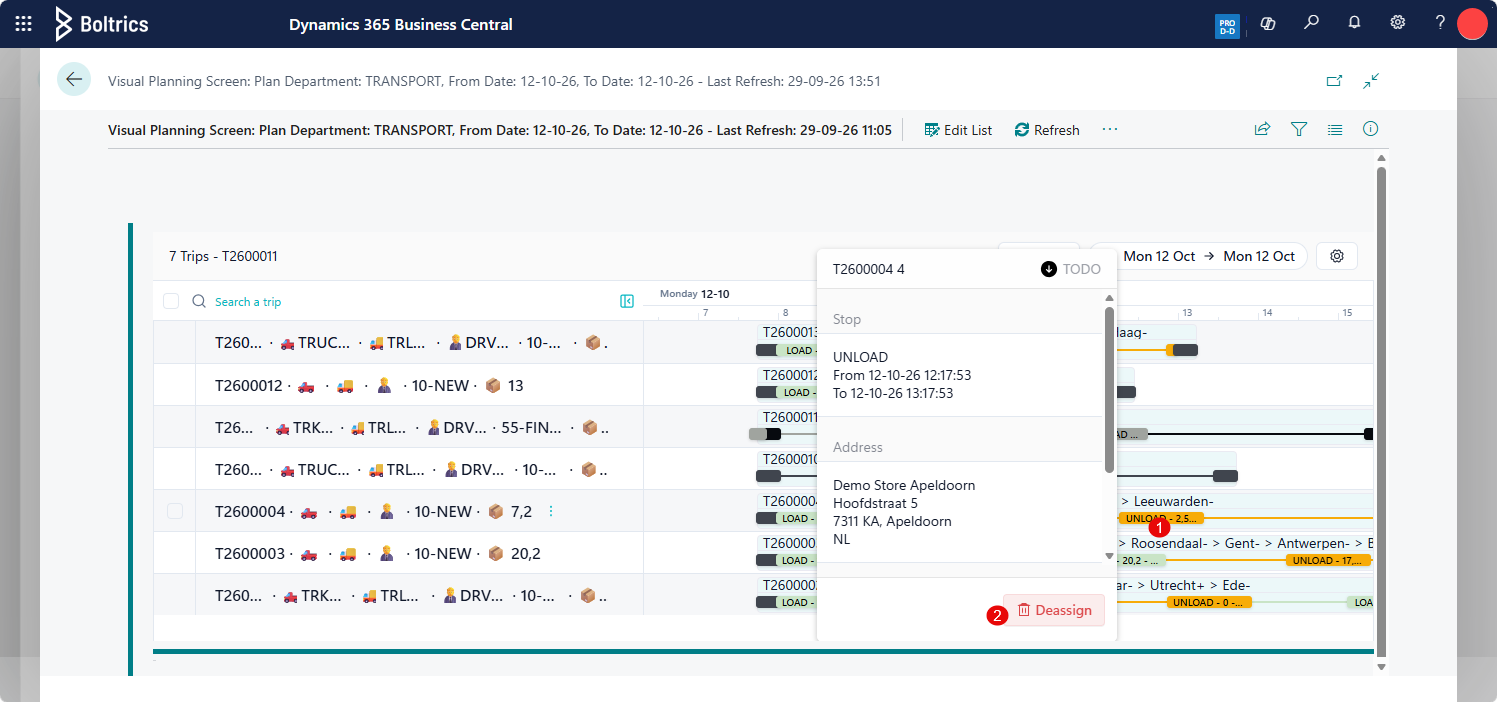
- Click on the stop that has to be removed from the Trip.
- Click the button: Deassign to confirm that the stop should be removed from the Trip.
Add sections by number
Users can assign Unplanned Sections to the timeline of a Trip based on a section number.
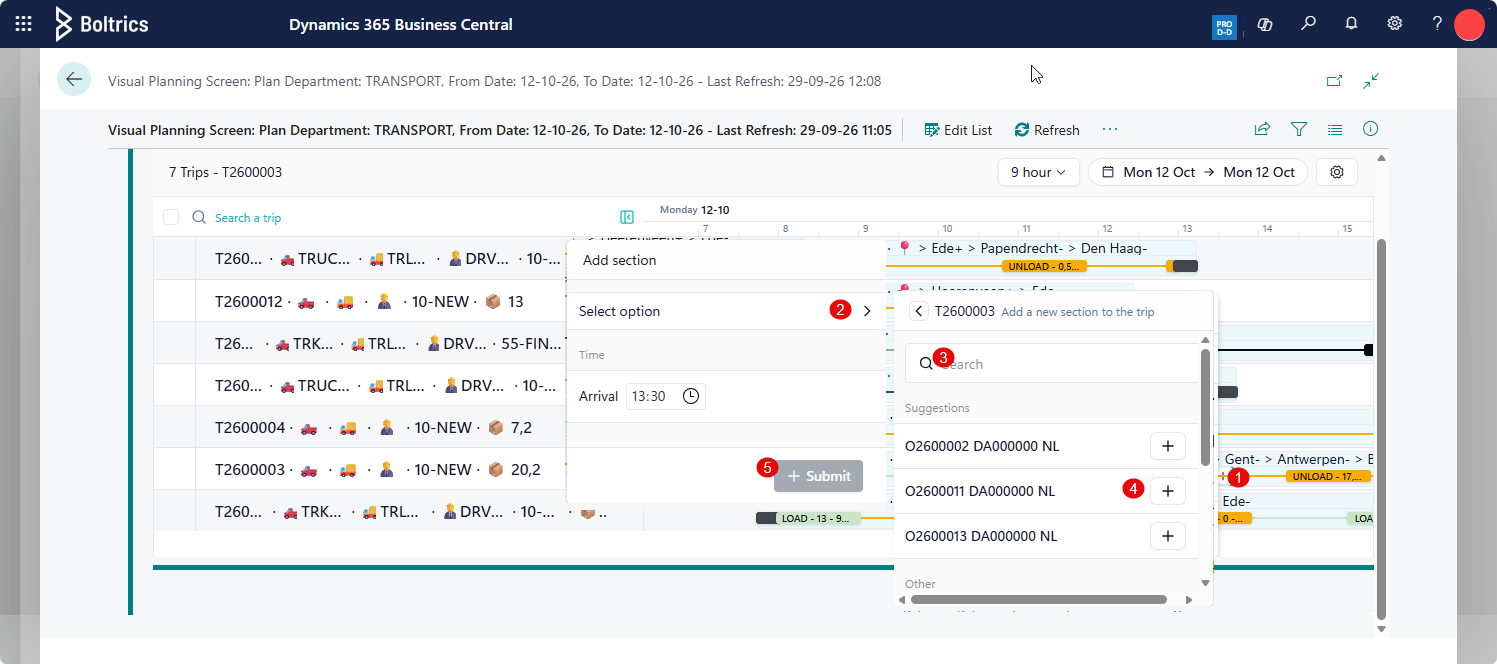
- Left mouse-click on the timeline to open the add-section window.
- Click on Select Option to open the section selector.
- If desired, a value can be typed in the search box so that only specific sections are shown.
- Click the + button to add the section number to the selection.
- Click the submit button to add the section to the trip.
Note
The window will show suggested sections. The following rules apply:
- Filter on unplanned Sections
- Filter on PlanDepartment
- Filter on loading date from the Sections must be equal to or after the date selected on the timeline.
- A maximum of 3 unplanned Sections will be shown.
- Sorting on section number
- After submitting the sections to the Trip, the Trip will be calculated. Planned dates/times are calculated for the stop(s) added and any subsequent stops on the Trip.
Settings
The following settings are applicable to Visual Planning - Timeline.
| Setting | Description |
|---|---|
| Stop Type | To configure which stops have to be shown in the Visual Planning Timeline. |
| Visual Planning User Setup | The Version field in the Visual Planning User Setup determines whether the Timeline or default grid is shown. |
| Visual Planning Timeline Setup | Configures the sidebar/trip/stop content and stop colours shown on the Visual Planning Timeline. |