Visual Planning Timeline Setup
General
Timeline Setup configures the Timeline (Gantt) view of the Visual Planning screen: what information is shown in the trip sidebar, on a trip's task bar, and in a stop's detail popup; which stop types appear on the timeline and in what color; and how often the timeline refreshes automatically.
Timeline Setup helps you:
- Show planners the information they need directly on the timeline without opening the underlying trip or stop
- Control which stop types (for example, Load, Unload, Couple, Decouple) appear on the timeline
- Color-code stops by their execution state so planners can spot delays and conflicts at a glance
- Maintain multiple named profiles and assign a different one per user
Functionality
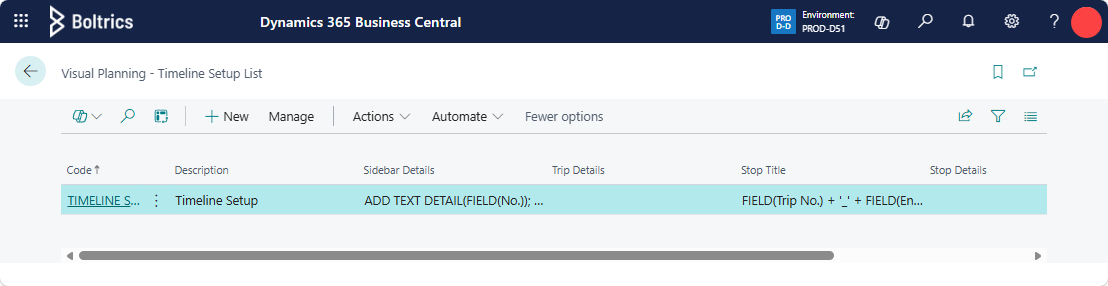
By choosing the  icon and entering Visual Planning - Timeline Setup List, the page can be opened.
Timeline Setup List Page
Actions
New: Opens the card page to create a new line.ManageEdit: Opens the card page for the selected line in edit mode.View: Opens the card page for the selected line in view mode.Delete: Deletes the selected line.
ActionInitialize: Automatically creates a timeline setup.
Fields
Code: A unique identifier for the timeline setup.Description: A descriptive name for the timeline setup.Sidebar Details: The Function Set used to present the information shown in the sidebar of the trip Visual Planning Timeline.Trip Details: The Function Set used to present the information shown along the top of the trip.Stop Title: The Function Set used to present the title shown when a User hovers over a stop in the Visual Planning Timeline.Stop Details: The Function Set used to present the stop details when a User hovers over a stop in the Visual Planning Timeline.Section Details: The Function Set used to present the section details to load or unload when a User hovers over a stop in the Visual Planning Timeline.
Timeline Setup Card Page
Actions
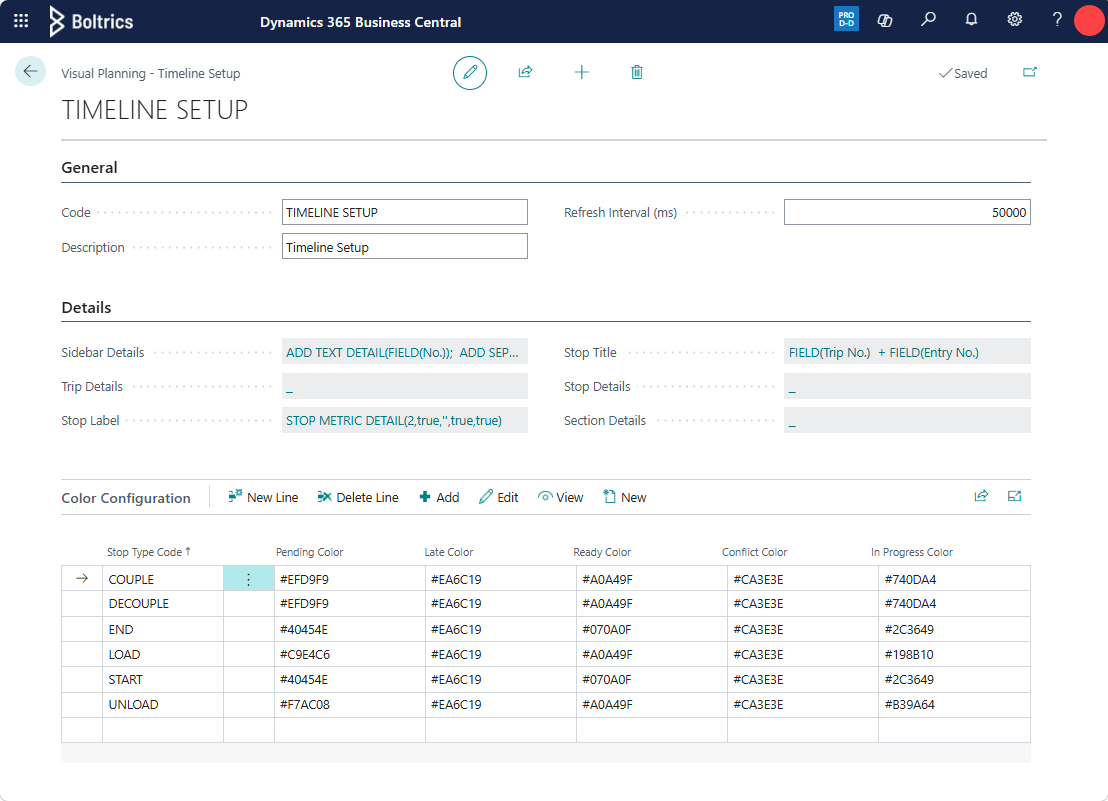
New line: Adds a new color configuration line above the selected line.Delete line: Deletes the selected color configuration line.Edit: Opens the card page for the selected color configuration line. On the card page, both the color codes and colors are shown.View: Opens the color configuration card page.New: Opens the card page to create a new color configuration line.
Fields
- General
Code: A unique identifier for the timeline setup.Description: A descriptive name for the timeline setup.Refresh Interval (ms): How often the timeline automatically refreshes, in milliseconds. A minimum of 5,000 ms (5 seconds) is always applied, even if a lower value is entered.
- Details
Sidebar Details: The information shown in the sidebar of the trip timeline. Source record: Trip.Trip Details: The information shown along the top of the trip. Source record: Trip.Stop Label: The label shown on the task block in the timeline. Source record: Stop.Stop Title: The title shown when a planner selects a stop in the timeline. Source record: Stop.Stop Details: The information shown when a planner selects a stop in the timeline. Source record: Stop.Section Details: The information shown when a planner adds a new section to the trip. Source record: Section.
- Color Configuration
Stop Type Code: The stop type code on which the color settings are applied.Pending Color: The color applied when the stop has not started, has not been completed, and no conflicts or delays apply.Late Color: The color applied when the stop has not started and the planned starting time has passed.Ready Color: The color applied when the stop is fully executed.Conflict Color: The color applied when a conflict is applicable to the stop, for example when time windows overlap.In Progress Color: The color applied when the stop is being executed.
Tip
- By clicking the color code on the card page, the color picker helps users select or modify the required color codes.
- To set a timeline configuration for a User, open Visual Planner User Setup, set the value in the Version field to Timeline, and then select the desired configuration in the Timeline Setup field.
- When changes have been made to the configuration, open the Visual Planning in a new web browser tab, as the Business Central settings need to be reloaded.
Sidebar Details (Function Set)
When the planning timeline is initialized, the following function set is configured automatically: Visual Planning Timeline - Sidebar Details.
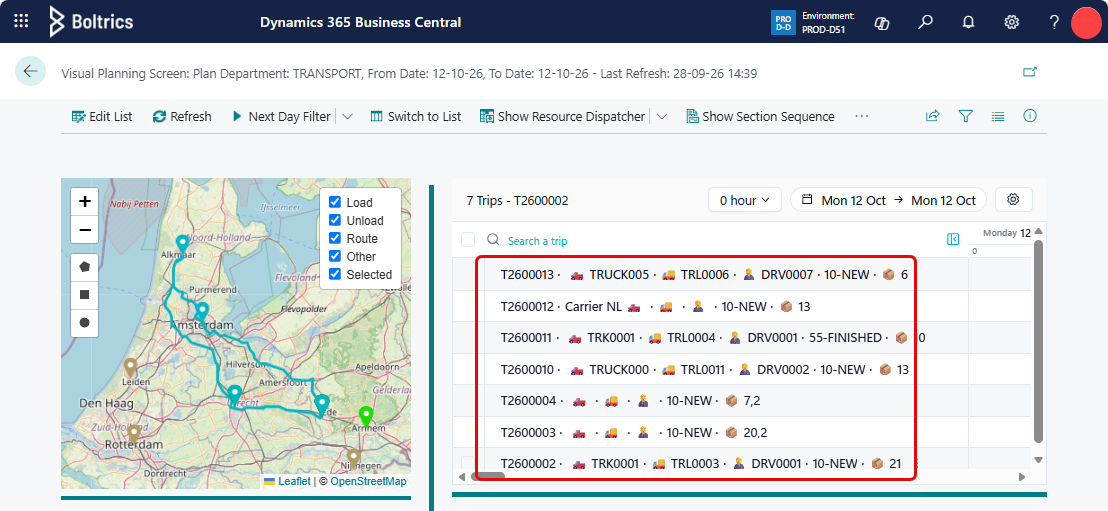
This function set generates the following information on each trip timeline:
- The trip number of the trip.
- A truck icon.
- The resource ID of the Truck planned on the Trip.
- A trailer icon.
- The resource ID of the Trailer planned on the Trip.
- A person icon.
- The resource ID of the Driver planned on the Trip.
- The status code of the Trip.
- A goods icon.
- The total quantity of the Unit of Measure planned on the Trip.
Tip
- When changes have been made to the configuration, open the Visual Planning in a new web browser tab, as the Business Central settings need to be reloaded.
Trip Details (Function Set)
Stop Label (Function Set)
When the Visual Planning Timeline is initialized, the following function set is configured automatically: Visual Planning Timeline - Stop Label.
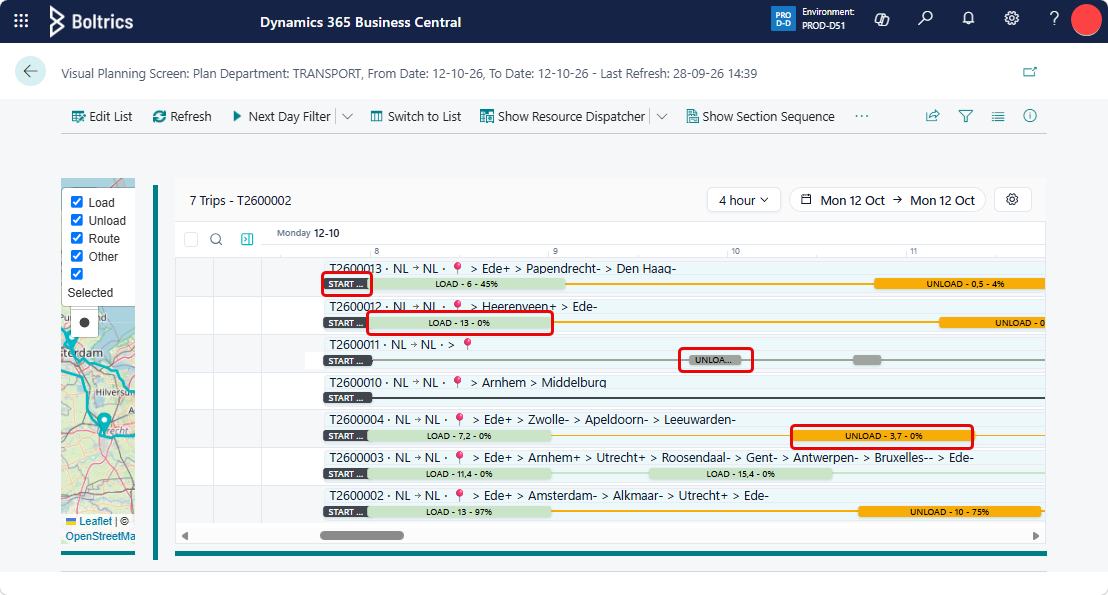
This function set generates the following information on each stop on the trip timeline:
- Stop type, for example: START, COUPLE, DECOUPLE, END, LOAD, or UNLOAD.
- The total quantity UOM at the end of the stop.
- The total quantity UOM as a utilisation percentage at the end of the stop.
Tip
- The parameters in the function set can be altered to hide the stop type, base the value on another UOM, or exclude the utilisation percentage.
- When changes have been made to the configuration, open the Visual Planning in a new web browser tab, as the Business Central settings need to be reloaded.
Stop Title (Function Set)
When the Visual Planning Timeline is initialized, the following function set is configured automatically: Visual Planning Timeline - Stop Title.
This function set generates the following information on each stop on the trip timeline:
- Trip number
- Stop number
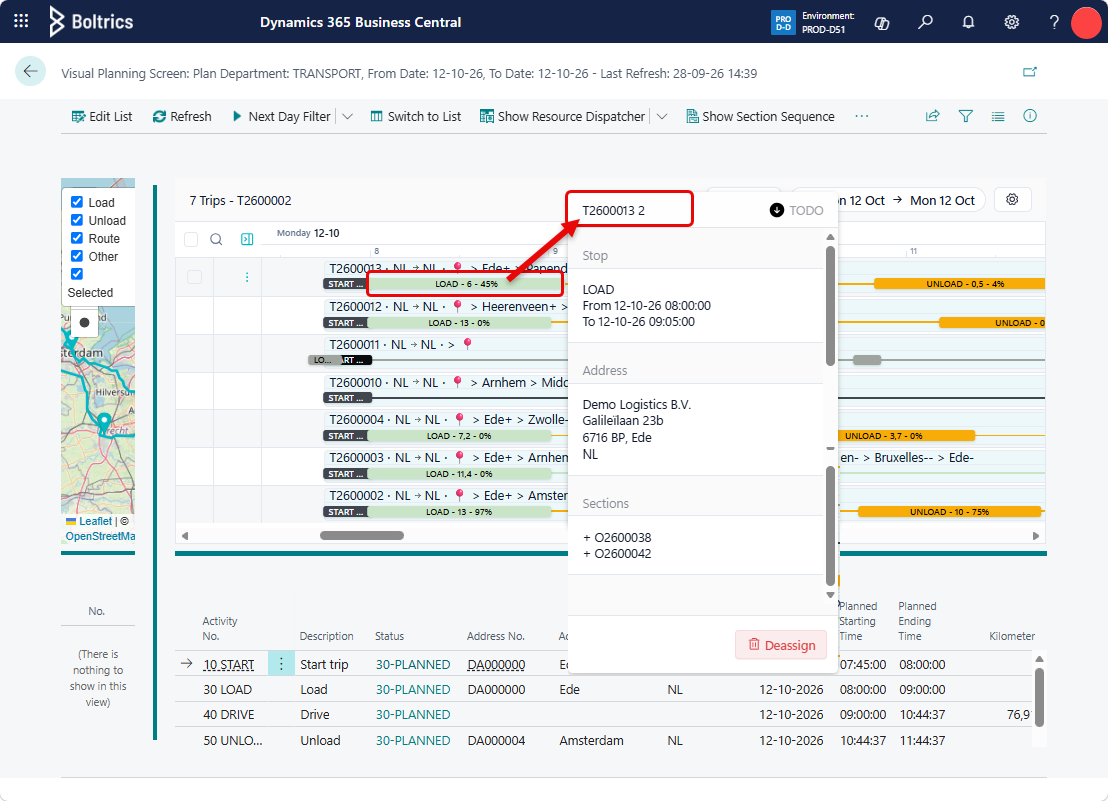
Tip
- When changes have been made to the configuration, open the Visual Planning in a new web browser tab, as the Business Central settings need to be reloaded.
Stop Details (Function Set)
Section Details (Function Set)
Settings
The following settings apply:
| Page | Description |
|---|---|
| Activity | Only activities containing a value in the Trip Stop Type field will be shown on the timeline. |
| Stop Type | Only stop types will be shown on the timeline. |
| Transport Setup | On the Planning tab, the Default Activity Calculation Type field must be set to Manual Activities. |
| Visual Planning User Setup | For each user, the Version field must be set to Timeline, and the Timeline Setup field must contain a value. |